


Interactive panel: 55, 65, 75 or 86 inches — which size should you choose? This is one of the key questions when equipping a classroom, meeting room, training centre or conference hall. The display needs to be large enough for everyone to see text and fine details, while remaining comfortable to use by touch and appropriate for the room.
Choosing the wrong diagonal size can become apparent only after installation: text is unreadable from the back row, the teacher cannot comfortably reach the top of the screen, or the display takes up almost the entire wall. To avoid these problems, consider not just the screen size in inches but also viewing distance, content type, furniture arrangement and installation method.
In this guide, we compare 55″, 65″, 75″ and 86″ displays, explain which applications suit each size and show how to choose an ELPIX interactive panel.
55, 65, 75 or 86 inches: which interactive panel should you choose?
| Screen size | Best suited to | Main advantage | What to consider |
|---|---|---|---|
| 55″ | Small offices, consultations and close-up use | Compact footprint | Small text is harder to read from a distance |
| 65″ | Meeting rooms, small and medium classrooms, training rooms | Balance of size and cost | May be too small for long rooms |
| 75″ | Standard classrooms, training centres and spacious meeting rooms | More room for diagrams and learning materials | Check overall dimensions and mounting requirements |
| 86″ | Large classrooms, boardrooms and conference spaces | Better visibility of large-format content for groups | Weight, mounting height and access to the upper screen area |
Interactive panel dimensions in centimetres: 55″, 65″, 75″ and 86″
The diagonal measurement in inches is the distance between opposite corners of the screen, not its width. For panels with a 16:9 aspect ratio, the approximate dimensions of the active display area are:
| Diagonal | Screen width | Screen height | Typical use |
|---|---|---|---|
| 55″ | ≈ 122 cm | ≈ 69 cm | Compact display |
| 65″ | ≈ 144 cm | ≈ 81 cm | Versatile display |
| 75″ | ≈ 166 cm | ≈ 93 cm | Group viewing |
| 86″ | ≈ 190 cm | ≈ 107 cm | Large interactive workspace |
These are calculated dimensions of the visible display area for a 16:9 screen. The overall dimensions, including the bezel and housing, may vary by model.
For example, an 86″ screen is approximately 32% wider than a 65″ screen, while its display area is approximately 75% larger. The difference is therefore more substantial than the diagonal numbers alone might suggest.
55-inch interactive panel: for smaller spaces
A 55-inch interactive panel is best suited to use at a short distance: one-to-one consultations, small-group teaching, meetings around a compact table or presenting information in a small office.
It provides a convenient touch surface for apps, photos and presentations. However, in a large classroom where participants sit farther from the display, small tables and labels may be difficult to read.
Choose this size when: users generally work close to the screen and the available space does not accommodate a larger display.
The current publicly listed ELPIX Z3 range starts at 65″. Availability of a 55-inch interactive panel and ordering options should be confirmed separately.
65-inch interactive panel: a versatile choice
65″ is a practical size for meeting rooms, teaching spaces and small classrooms. It provides sufficient workspace for a digital whiteboard, presentations, diagrams and collaborative editing without taking up too much wall space.
When participants are seated mainly in the front rows or around one table, a 65-inch panel often strikes a good balance between convenience, dimensions and budget.
However, consider the farthest seat: if users regularly need to read small labels on maps or spreadsheets, it is worth comparing the 65″ model with a 75″ display.
Example: the ELPIX Z3 65″ interactive panel, with touch control and 4K Ultra HD resolution.
75-inch interactive panel: for education and teamwork
A 75-inch screen offers more space for content and makes images easier to see for people seated farther away. It is well suited to a standard classroom, teaching auditorium, training centre or spacious meeting room.
The larger format makes it easier to work with detailed diagrams, several windows, charts, presentations and shared documents. It is particularly useful when materials must remain visible while leaving room for annotations.
Before choosing 75″, check the available wall width, mounting height and how comfortably users can reach the touch surface.
Example: the ELPIX Z3 75″ interactive panel, suitable for teaching, presentations and collaborative work.
86-inch interactive panel: for large rooms
86″ is worth considering when a larger group needs to see the display clearly, such as in a spacious classroom, conference hall, situation centre or collaborative discussion space.
Its large surface helps display maps, plans, diagrams, learning materials and several information panels. At the same 4K resolution, a larger diagonal does not add pixels, but it increases the physical size of on-screen elements, which can make them easier to see from farther away.
Take care not to mount the panel too high. If users will interact with it by touch, reaching the upper part of an 86-inch display may be difficult for children or shorter users. In large halls where most people only view a presentation, this is less critical than in spaces where users actively interact with the screen.
Example: the ELPIX Z3 86″ interactive panel.
Five criteria for choosing the right screen size
1. Distance from the panel to the back row
Measure not just the floor area but the distance from the screen to the farthest viewer. That person should be able to read essential information comfortably. If only headings are visible from the last row and text or labels must constantly be enlarged, the panel may be too small or the content needs a different layout.
2. Content: video, text, tables or maps
A smaller screen may be enough for large images, video and headings. Spreadsheets, technical drawings, labelled maps and multi-window layouts require details to remain legible — which may call for a larger screen or appropriate content scaling.
3. Number of people and furniture arrangement
Two meeting rooms of the same size may need different panels. If everyone sits close to the display, 65″ may be sufficient. If seats are arranged in multiple rows or at wide viewing angles, consider 75″ or 86″.
4. Who will use the touchscreen?
For teachers, children and groups of participants, easy access to the touch area matters. A larger screen provides more space for interaction but must be mounted at a suitable height. If the panel will mainly be used for presentations, visibility from a distance becomes the priority.
5. Installation, weight and mobility
Before purchasing, check the overall dimensions, weight, wall type, mounting standard and whether the panel can be brought through doorways or lifts. If it will be moved between classrooms, choose a mobile stand compatible with the panel’s specific size and weight.
What size interactive panel is best for a school?
Three factors matter in a school classroom: the room’s depth, desk arrangement and type of learning content. If the teacher uses the panel as the main digital whiteboard, materials must be readable from more than just the front desks.
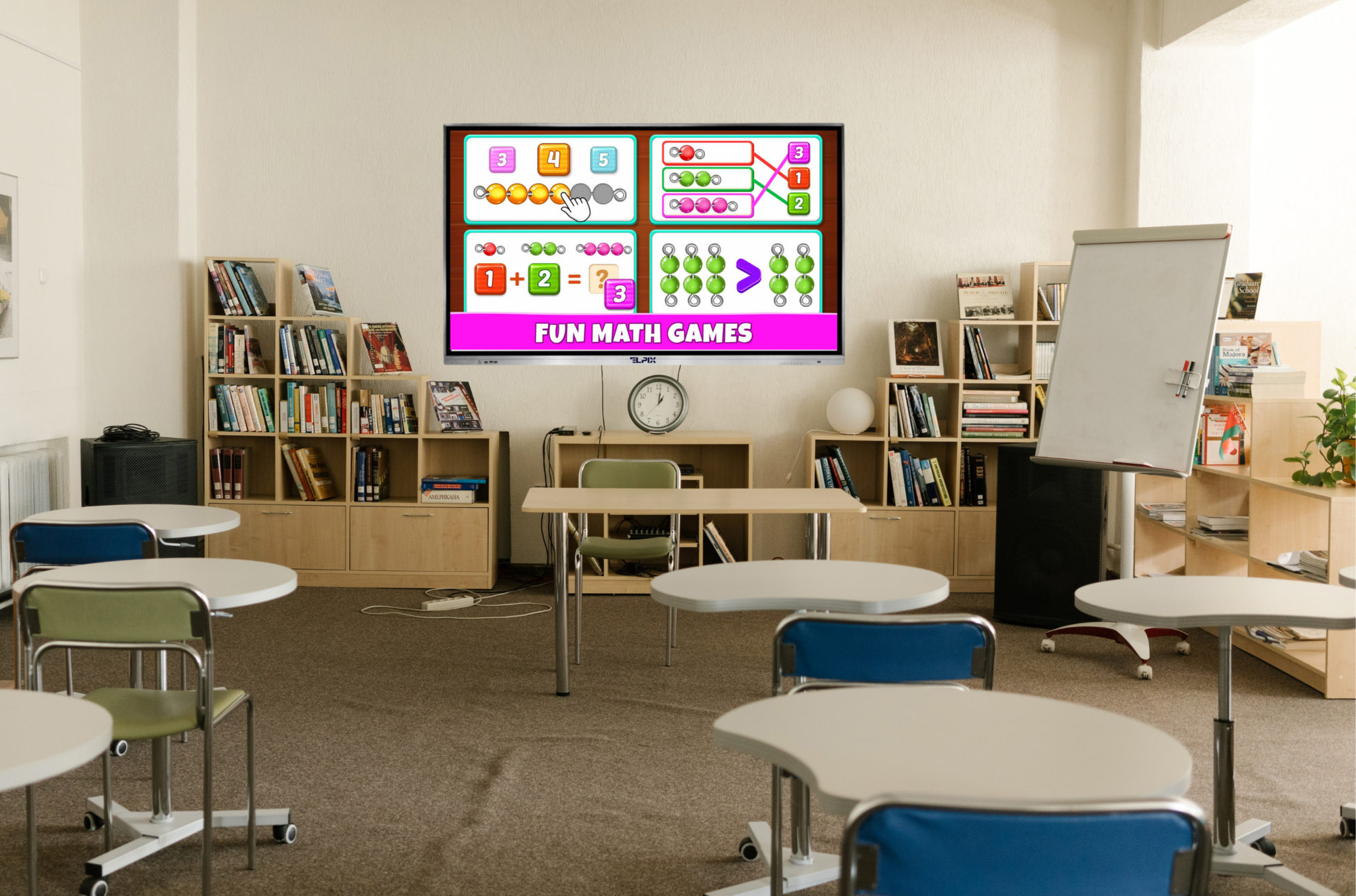
| Learning space | Size to consider | Why |
|---|---|---|
| Small office or one-to-one lessons | 55–65″ | Users work close to the screen |
| Compact classroom or training group | 65″ | Balance of visibility and size |
| Standard classroom with several rows of desks | 75–86″ | Larger text for pupils seated farther away |
| Spacious classroom or lecture hall | 86″ or larger | Visibility must be checked from the back row |
These are practical guidelines, not mandatory standards. The right size should be checked against the actual classroom layout and a sample of the teaching materials.
For interactive exercises, also consider multi-touch capability, installation height, styluses and software.
65, 75 or 86 inches for meeting rooms and conference halls
In a small meeting room, a 65″ panel often offers enough space for presentations, video calls, diagrams and notes without overwhelming the room.

In a larger meeting or training room, compare 75″ with 65″. The extra screen area is helpful for displaying documents, discussing projects and editing materials together.
In a conference hall, training centre or situation centre, an 86″ panel provides a larger display area for maps, diagrams and group presentations. If the room is particularly long, visibility should still be assessed even with an 86″ screen — an additional display or a different display system may be more suitable.
What else should you check before buying an interactive panel?
Choosing the right diagonal is only part of the decision. Before ordering, review the following specifications:
- Resolution. The large-format ELPIX Z3 panels offer 4K Ultra HD resolution for detailed presentations and images.
- Touch technology. Check touch precision, stylus support and the number of simultaneous touch points for the selected model.
- Operating system and software. Built-in Android covers basic needs; Windows applications may require a compatible OPS computer or an external PC.
- Connectivity. Check HDMI, USB-C, USB Touch, networking connections and compatibility with your devices.
- Package contents. Confirm whether mounting hardware, styluses, a remote control, mobile stand or OPS module are included in the specific offer.
- Budget. Compare not only the prices of different screen sizes but also specifications, software, installation and servicing.
For example, upgrading from 65″ to 75″ does not eliminate the need for an OPS module if specialised Windows software is required. Likewise, a more powerful computer will not solve poor text visibility from the back row.
Which interactive panels does ELPIX offer?
ELPIX offers Z3-series interactive panels for education, business, presentations and specialised workplaces. The current catalogue lists standard 65″, 75″, 86″ and 98″ models. Below are three options to compare; check the exact package contents on each product page.
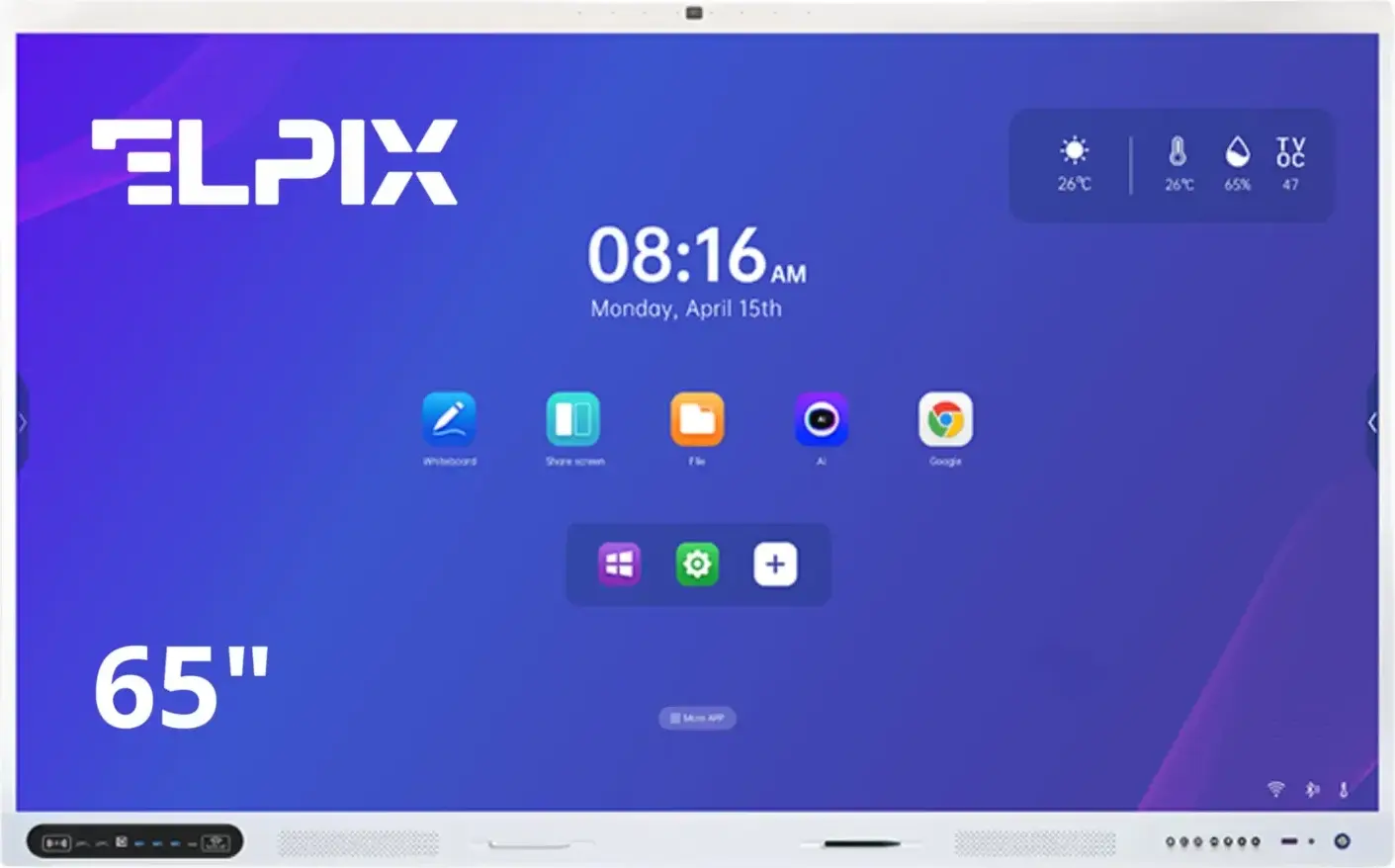
A versatile size for presentations, digital whiteboarding and collaboration in small to medium-sized rooms.
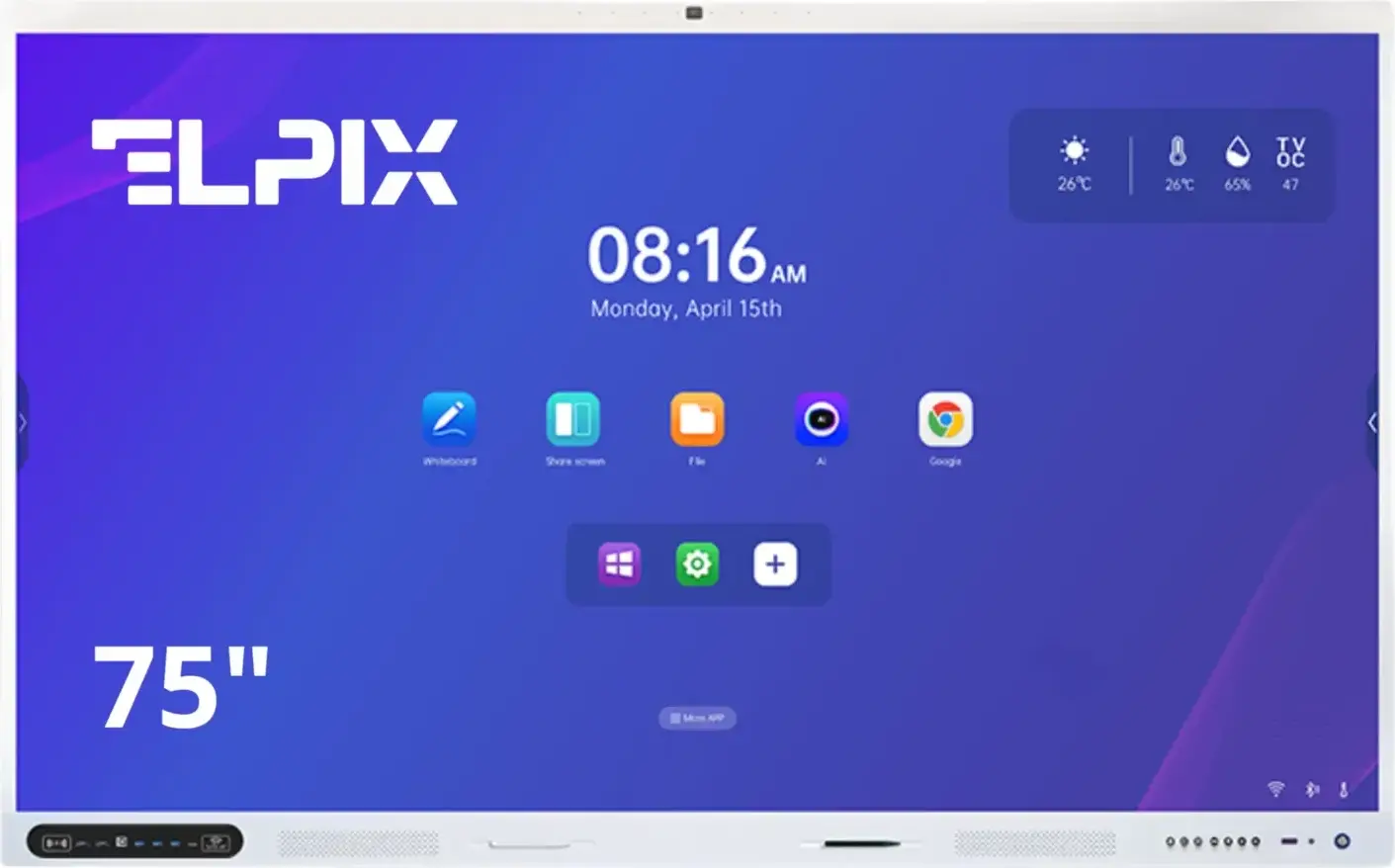
More room for teaching materials, diagrams, presentations and collaborative discussions.
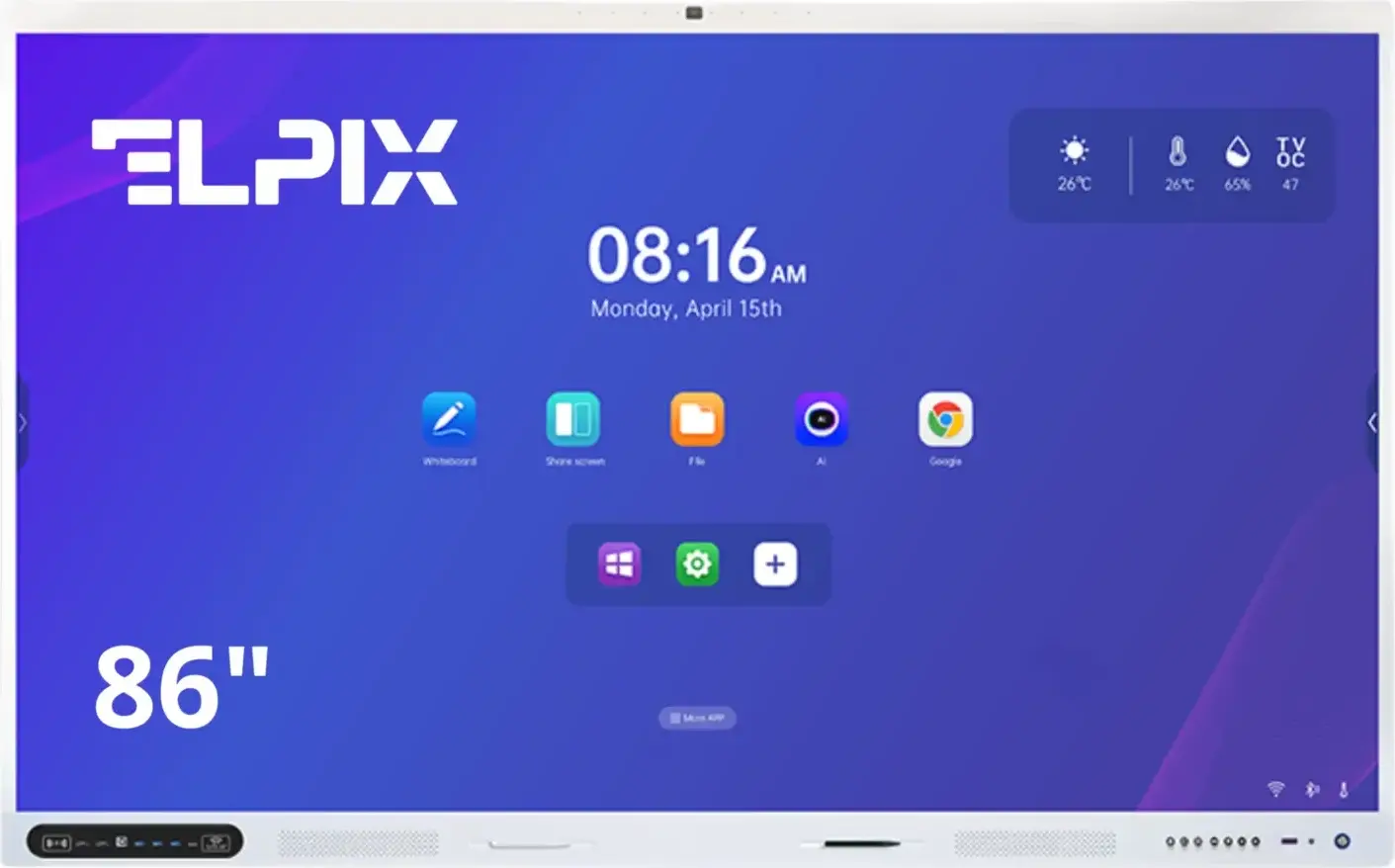
A large touchscreen for spacious classrooms, conferences, training sessions and teamwork.
The photos show ELPIX Z3 panels in the respective screen sizes. Check current specifications, package contents and availability on the selected product page.
Conclusion: which interactive panel size should you choose?
For a compact display used at close range, consider 55″. For most small classrooms and meeting rooms, 65″ is a practical choice. If there are more users or they sit farther away, compare 75″ models. For spacious classrooms, conferences and group viewing, consider 86″.
The best screen size is one that makes your actual content comfortably readable from the farthest seat. Before ordering, review the room layout, installation method, software requirements and package contents.
To choose the right panel, browse the ELPIX interactive panel catalogue. The company can help you select a screen size, compatible OPS module, mounting solution or mobile stand, and prepare a proposal based on your requirements.