


Android EDLA and MDM in Interactive Tables: What Are They and What Are the Benefits? EDLA — a Google licensing programme that enables manufacturers to supply compatible Android devices with official Google services, including Google Play. MDM (Mobile Device Management) is a centralised device management system that helps configure equipment, deploy applications and enforce access policies. These technologies are particularly useful when an interactive table is shared by multiple users or several tables need to be managed as a single infrastructure.
However, EDLA is not the same as MDM and does not guarantee support for every management system. Capabilities depend on the table model, Android version, licensed services, available device enrolment mode and selected software. We will explain the differences, explore practical use cases and outline what to check using interactive tables from ELPIX.
Android EDLA and MDM: a quick guide for customers
Legitimate integration of licensed Google Mobile Services into a specific hardware configuration.
A console for managing devices, applications, settings and access policies.
A touchscreen surface running Android, with an independent Windows computer in selected models.
What is Android EDLA and how does it differ from standard Android?
EDLA (Enterprise Devices Licensing Agreement) — a licensing programme used by manufacturers of large interactive Android devices. It allows certified configurations to include licensed Google Mobile Services (GMS), including the Google Play Store. This matters to customers who intend to use applications from the official catalogue and services within the Google ecosystem.
Android as an operating system and Android with licensed Google services are not the same thing. A device can run Android without GMS; application installation then depends on the firmware and software distribution methods. Android 13, 14 or 15 alone does not establish EDLA status.
EDLA does not mean that every Google enterprise feature is automatically available, that every application is compatible with a horizontal touchscreen, or that the manufacturer has already configured device management. These are separate matters for technical verification. EDLA and Google services are explained, among other sources, in BenQ’s explanation of the Google programme.
EDLA, Android Enterprise, MDM and CMS: what is the difference?
These terms are often used together, although they serve different purposes. To define technical requirements correctly, distinguish between Google services licensing, the management platform and the content display system.
| Technology | What it provides | What it does not guarantee |
|---|---|---|
| Android EDLA / GMS | Licensed Google services on a specific certified Android configuration | Automatic connection to any MDM system or compatibility with every application |
| Android Enterprise | Enterprise mechanisms for enrolling and managing Android devices and policies | Support for every mode on every specialised table |
| MDM / EMM | Centralised configuration, software deployment, policy enforcement and status monitoring within supported capabilities | Management of the Windows module through Android policies or complete elimination of cybersecurity risks |
| CMS | Publishing and updating presentations, media, menus, catalogues and messages | System-level management of permissions, the OS and enterprise policies without separate tools |
For enterprise Android management, Google documents fully managed and dedicated device modes. Availability of a particular mode on an interactive table should be checked with the MDM provider rather than assumed from the EDLA label alone. Learn more: Android Management API — Google for Developers.
What MDM offers interactive tables: six capabilities
Suppose an organisation uses several tables in different rooms rather than just one. Configuring each manually takes time, and changes in responsible staff can lead to inconsistent configurations. A compatible MDM system helps standardise operations.
| Customer requirement | What compatible MDM can provide | What to check |
|---|---|---|
| Consistent table configuration | Configure policies and permitted settings from a central console | Supported enrolment mode and administrator permissions |
| Installation of educational or work-related software | Managed delivery of applications and updates | Application source, licences and Android version compatibility |
| Restricting unauthorised actions | Approved applications and dedicated modes for shared devices | Availability and limitations of dedicated / kiosk mode |
| Multiple locations | View available information about enrolled devices | Network connectivity, telemetry collected and data protection |
| Changes to corporate rules | Update managed access policies | Support for required settings by the MDM provider |
| Device decommissioning | Product-supported unenrolment and reset procedures | Backups, permissions and recovery procedures |
Where Android EDLA and MDM benefit interactive tables
Educational institutions and training centres
When interactive tables are used in several classrooms, administrators can more easily maintain a consistent set of educational applications and prevent accidental changes to settings. EDLA itself does not determine educational capabilities; these depend on learning applications, teaching methods and the table’s touchscreen characteristics.
Museums, exhibitions and information areas
Visitors need the relevant interactive catalogue or exhibit to be available at startup. These environments often combine CMS for content and MDM for system settings. Whether an application can operate in kiosk mode should be tested on the actual firmware and in the intended use case.
Corporate spaces and enterprise training centres
The table can be used for presentations, charts, plans and corporate web services. Supported account mechanisms, application management and internal IT requirements matter when connecting to enterprise infrastructure.
Specialised workstations
When a table is intended for work-related or restricted-access applications, the priorities are access policies, software verification, update sources and approval from responsible administrators. Being able to install an application from Google Play does not mean it is authorised for use within protected infrastructure.

Android and Windows in one interactive table: how it works
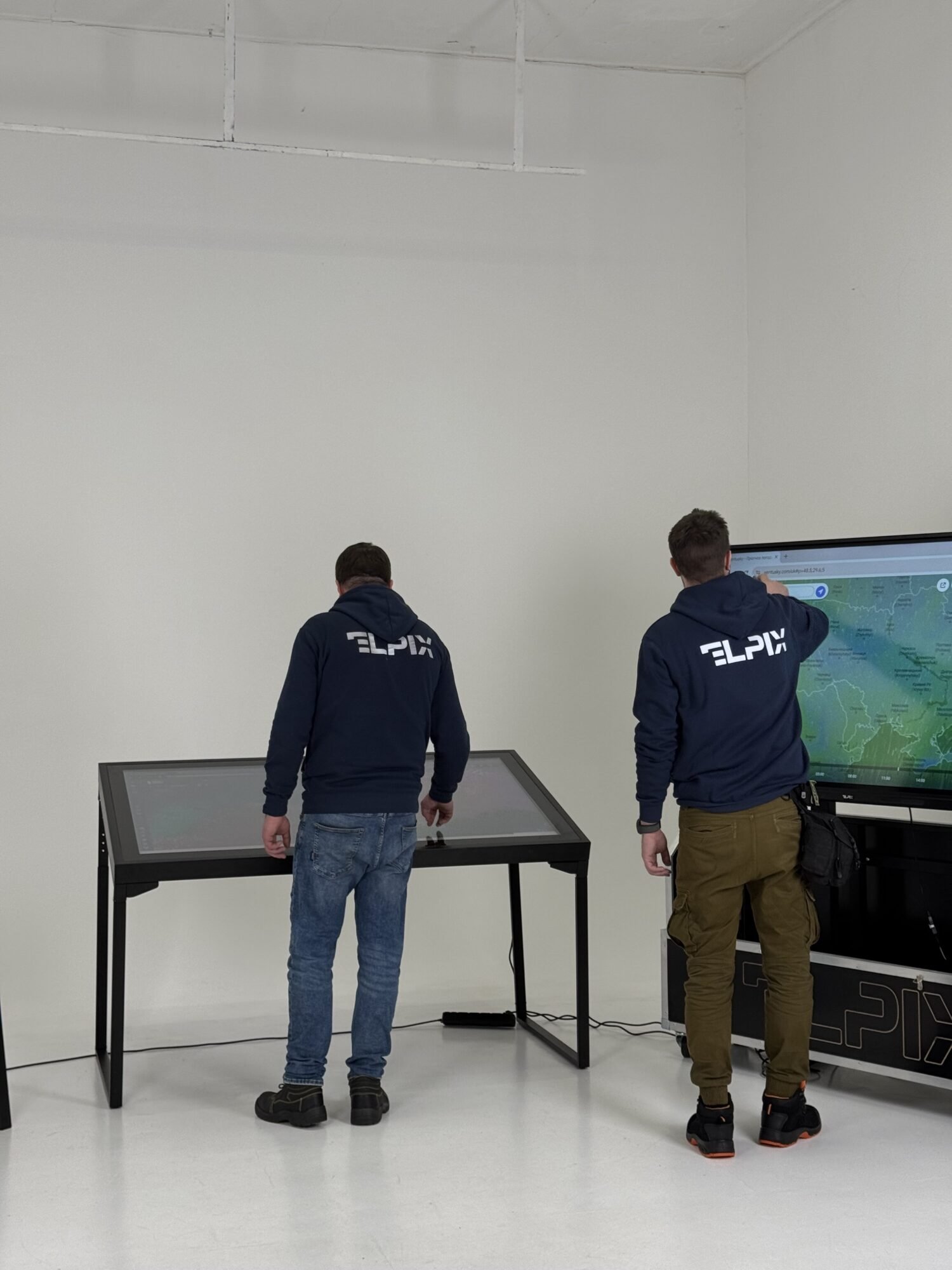
Some ELPIX interactive tables have two independent computing systems: Android and Windows. They do not share a single operating system: each environment uses its own applications, update mechanisms and administration tools. Switching between them must be supported by the hardware design and firmware of the specific model.
For example, the ELPIX S8 v2.0 65″ Basic combines Android 15 on an Amlogic A311D2 (8 GB RAM, 128 GB storage) with a Windows OPS computer featuring an Intel Core i5. The 4K touchscreen supports up to 40 simultaneous touch points, and the design features motorised height and tilt adjustment. These are specifications of this particular model, not all ELPIX tables.
The Militarnyi article about ELPIX mentions Android 15 EDLA for the S8 v2.0. Before purchasing, however, customers should confirm that the exact hardware and software variant offered includes licensed Google services and supports the required MDM connection method.
Does EDLA make an interactive table secure? What about specialised applications?
EDLA is not a universal cybersecurity certification. Licensed Google services can form part of a supported and verifiable software configuration, while compatible MDM can help implement organisational policies. Security also depends on system updates, account settings, networks, administrator access, application permissions and data handling procedures.
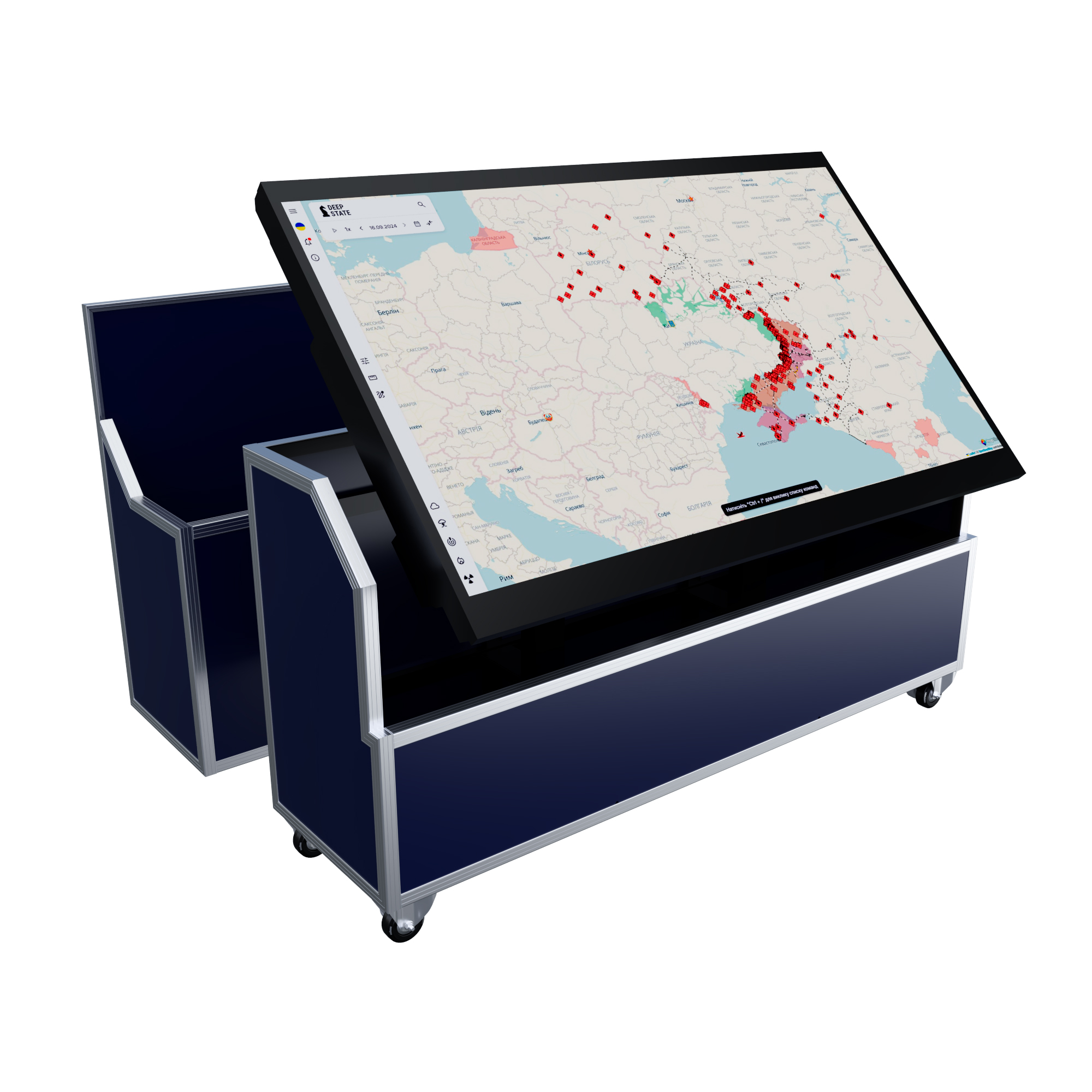
For specialised software, including situational awareness systems, requirements are determined by the owner or administrator of the specific system. Supported OS versions, authentication and access procedures, authorised devices and compliance with institutional policies must be checked. EDLA and MDM can be part of such a solution, but do not replace approval and testing.
Official Google Play access should not be confused with guaranteed compatibility with every application. Interface design, orientation, touch interaction and offline operation may be critical for a horizontal screen.
ELPIX interactive tables with Android: model comparison
The ELPIX catalogue includes several Android and combined Android/Windows tables. The table below lists verified device specifications; EDLA status and enterprise MDM compatibility must be confirmed separately for each configuration.
| ELPIX model | OS / computing platform | Key differences | What to check regarding EDLA/MDM |
|---|---|---|---|
| S8 v2.0 65″ Basic | Android 15 (A311D2, 8/128 GB) + Windows OPS i5 | 4K, 40 touch points, motorised tilt and height adjustment | EDLA is mentioned in the ELPIX article; request confirmation for the specific delivery and conduct an MDM test |
| S8 65″ Dual System Basic | Android RK3588 (8 GB/128 GB + 512 GB) + Windows i5 | 4K, 20 touch points, transport case | Public information does not confirm EDLA; clarify GMS and MDM support |
| S8 50″ Dual System High-Performance | Android RK3588 + Windows i7 with discrete graphics | 4K, 20 touch points, PCAP, mobile configuration | Public information does not confirm EDLA; agree on the software configuration |
Models and specifications are based on the product pages for S8 v2.0 65″, S8 65″ and S8 50″. Catalogue configurations and firmware may change. Information was verified in November 2026.
4K Ultra HD · up to 40 touch points · motorised screen position adjustment. The specific configuration must be checked for the required EDLA/MDM mode.
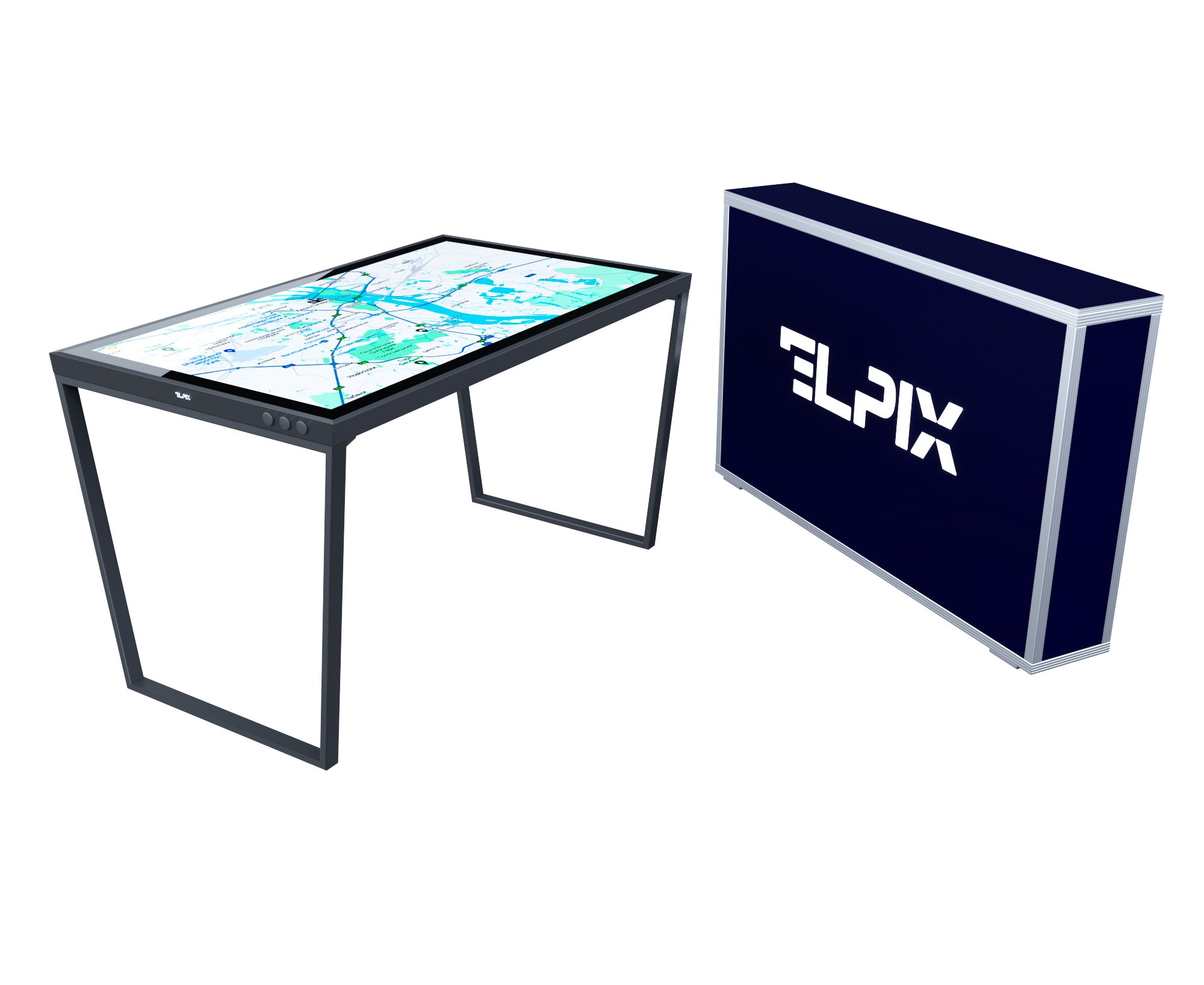
4K Ultra HD · PCAP, up to 20 touch points · Android and Windows · transport case. EDLA and MDM features are not claimed without verification.
How to prepare interactive tables for MDM: six steps
To ensure the solution is useful in practice, check not only equipment specifications but also the management process before ordering:
- Define the requirements. How many tables are needed, who will use them, which applications and networks are required, and whether devices will be shared.
- Agree on the specification. Record the exact model, processor, Android version, list of Google services and EDLA status for the selected variant.
- Select an MDM/EMM solution. Check supported device types, enrolment modes and compatibility with specialised displays.
- Test one device. Connect a test table to the management system and verify enrolment, applications, policies and recovery after restarting.
- Agree on security and permissions. Define the administrator, accounts, network requirements, updates, logs and backups of necessary data.
- Scale after acceptance. Only after successful pilot testing should the configuration be rolled out to other tables and technical instructions prepared.
Conclusion: when do interactive tables really need EDLA and MDM?
Android EDLA matters when official Google services are required. MDM is useful when an organisation needs to centrally administer equipment, standardise applications, control settings and manage the device lifecycle. For a standalone table or Windows-only operation, additional tools may be unnecessary.
When choosing equipment, look beyond marketing claims of EDLA/MDM and focus on the confirmed configuration, required applications and test results. ELPIX manufactures interactive tables with various computing configurations, including Android and Windows. Explore the models and agree on technical requirements in the ELPIX catalogue of special-purpose interactive tables.