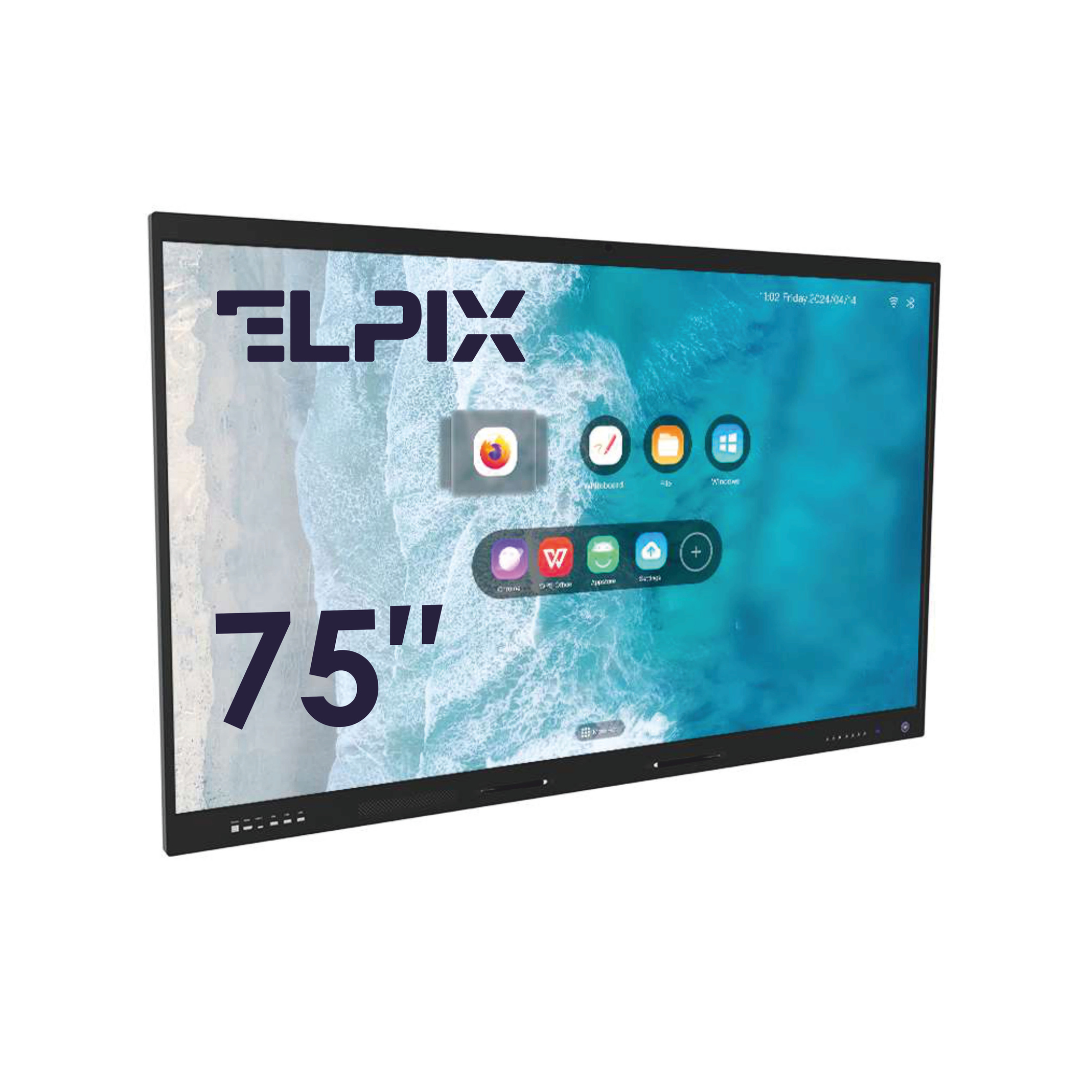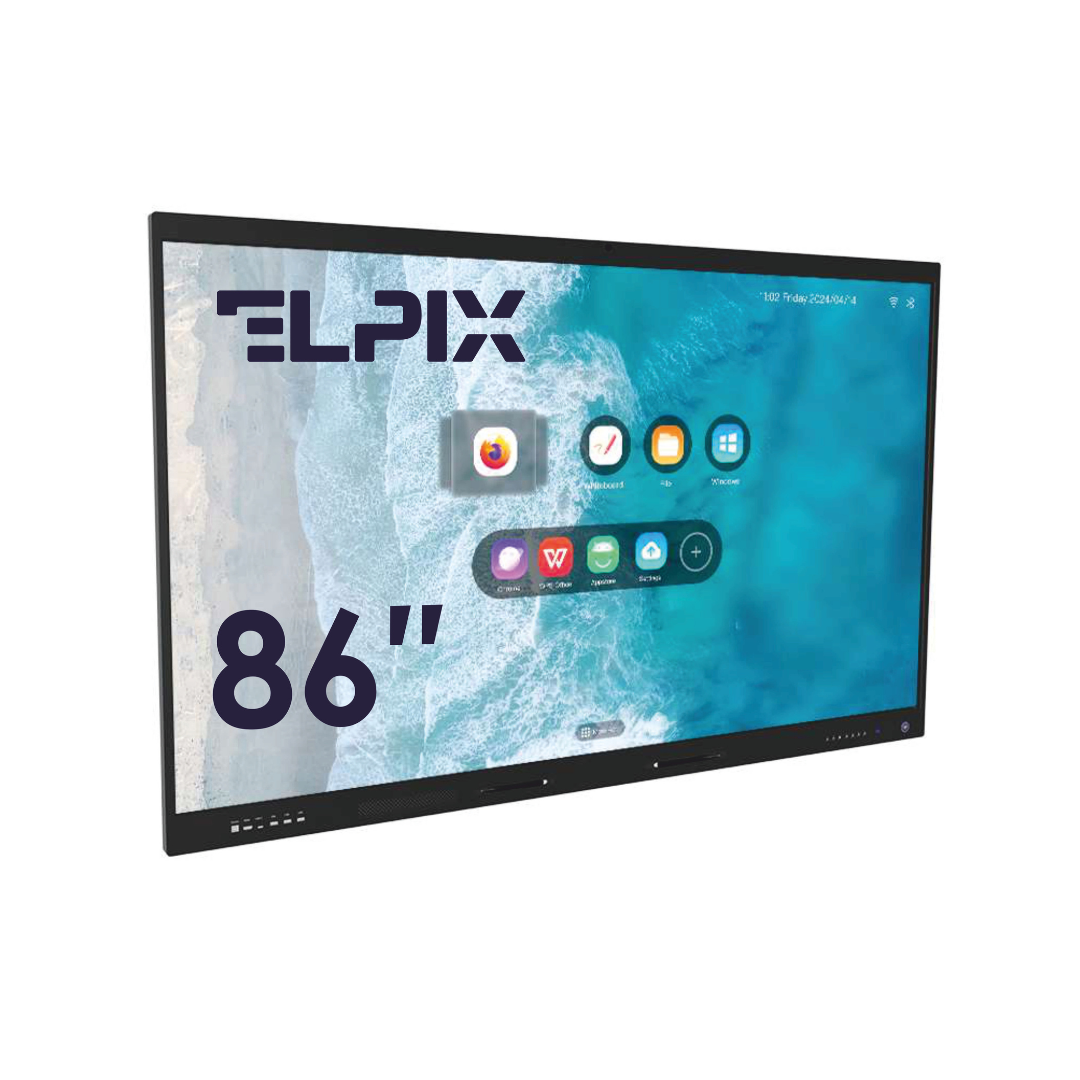

An infrared touch frame turns an ordinary monitor, TV, or projection screen into a touchscreen. You don’t replace the display itself. The frame mounts around the edge of the screen, connects over USB, and the system sees it as a HID device. On Windows 7/8/10/11, Linux (kernel 2.6+), Android, and macOS it usually works with no drivers at all.
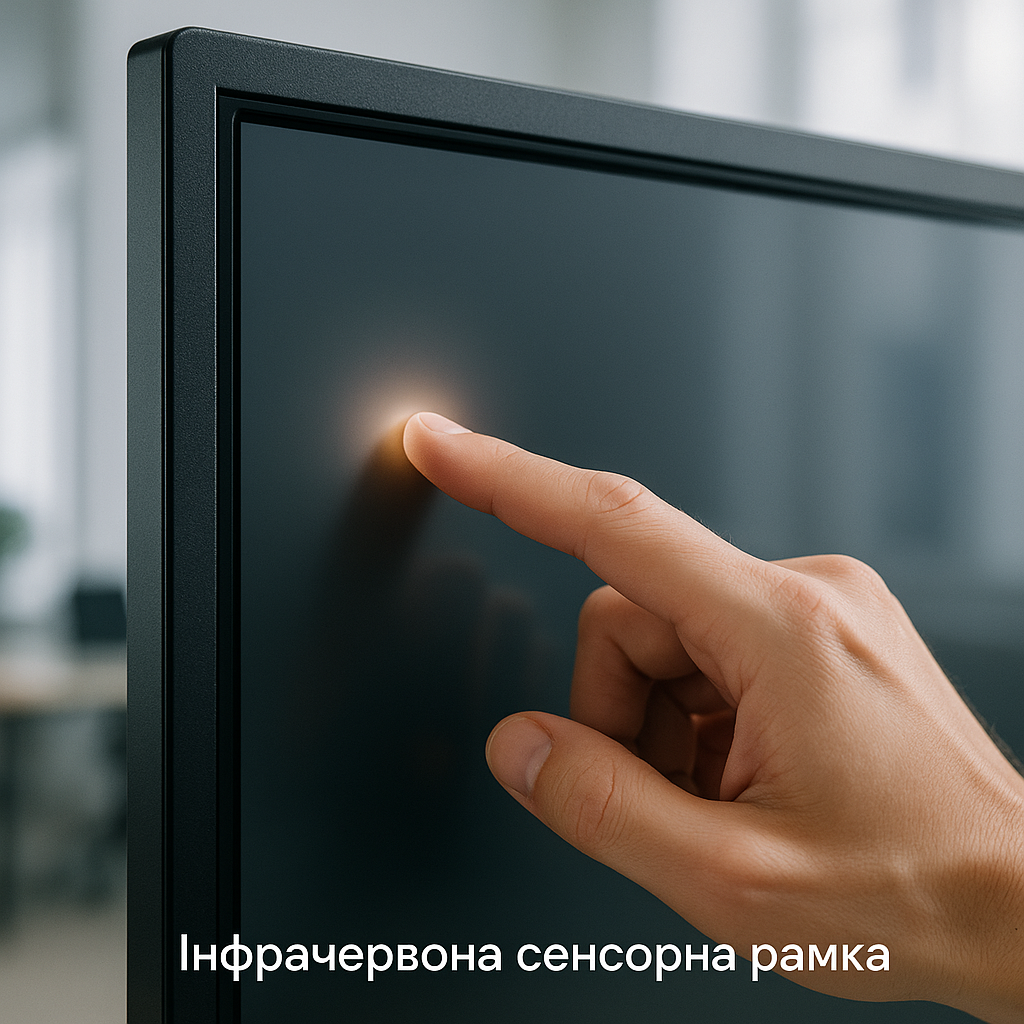
What an infrared touch frame is and how it works
An infrared touch frame (IR frame, IR touch frame) adds touch control to a surface you already have: a monitor, a TV, an interactive whiteboard, or a projection screen. It isn’t a new screen — it’s an external module that sits over the display and plugs in over USB. My take is simple: for a school, an office, or a kiosk, that’s often a smarter move than swapping the whole panel, as long as the picture on the old screen still holds up.
How the IR sensor works
Inside the frame there are infrared LEDs and photodetectors. They build an invisible grid of beams just above the screen surface. A finger, a stylus, or a pointer breaks part of the grid; the controller calculates the coordinates on two axes and hands them to the computer over USB HID. Response time is under 8 ms. That’s fast.
The core specs of an IR frame:
- Connection: USB HID, plug-and-play, usually driverless
- OS: Windows 7/8/10/11, Linux (kernel 2.6+), Android, macOS
- Response: <8 ms
- Positioning resolution: up to 4096×4096 points
- Operating temperature: 0–50 °C
How it differs from a projected-capacitive (PCAP) sensor
A PCAP sensor is built into the display glass at the factory. It’s precise, clean, and gets along well with a finger. But there’s a catch: you can’t retrofit an old screen that way. An IR sensor works differently. It barely cares what sits under the frame — plain glass, a matte film, a polarizing coating, or protective acrylic. What matters is that the object crosses the IR beams. For display cases and kiosks in sealed enclosures, that isn’t a bonus; it’s a working requirement.
| Parameter | IR frame | PCAP (built-in) | Projected-capacitive overlay |
|---|---|---|---|
| Works with an existing display | Yes, almost any display | No, needs a new screen | Limited |
| Works through protective glass | Up to 20 mm | No | Up to 6 mm |
| Multitouch | Up to 40 points | Up to 10–20 points | Up to 10 points |
| Use with gloves / stylus | Any object | Capacitive stylus only | Capacitive stylus only |
| Upgrade cost | Low | High, panel replacement | Medium |
| Installation | DIY, about 15 min | Factory | Needs calibration |
Where touch frames are used
A touch frame doesn’t cover abstract “interactive scenarios” — it covers down-to-earth jobs: a classroom, a meeting room, a display case, a kiosk. The technology is the same. The requirements aren’t. A school runs into multitouch, a meeting room into working with documents, a display case into protective glass and steady touch recognition.
For schools and education
Schools and colleges either move from old projector boards to interactive panels or upgrade LED TVs they already bought with IR frames. Why does that matter? Because in a classroom several students can step up to one screen at once, instead of a single person “at the board.” Support for 10–20 multitouch points lets them work together in learning software. Kids move objects with their hands on a big screen; honestly, that usually reads faster than the teacher fiddling with a mouse at the desk.
There’s a budget side too, and in education you can’t skip it. A frame fits diagonals from 32″ to 110″. If a school already has TVs or monitors, it can make them touch-enabled within a single purchasing cycle. No full display replacement. Sure, a new panel looks nicer on the quote. It just isn’t always needed.
For business and meeting rooms
In a meeting room a touchscreen often replaces the whiteboard. People open a document, mark up edits, move blocks around a diagram, draw over a presentation. Everything saves on the spot, without the closing ritual of photographing the board on a phone. I’ll be blunt: it’s a small thing right up until the first meeting where the edits didn’t get lost. Corporate setups are usually built around professional 65″–86″ displays with an Elpix frame added on top.
A typical build looks like this: a Samsung/LG or Sharp display, an Elpix frame, a mini-PC running Windows 11, and collaboration software — Microsoft Whiteboard, Google Jamboard, or a corporate whiteboard system. After the USB connection, the mini-PC detects the frame on its own. About 30 seconds after power-on you can already tap the screen. No magic. Just HID.
Interactive display cases and signage
Shopping centers, trade-show stands, museums, and information kiosks run rougher than an office meeting room: you need 1000 cd/m² brightness or more for daylight, reliable operation with gloves on, and protection from accidental knocks. An IR frame fits those conditions because it reacts to the beam being crossed, not to the display itself. The “stylus” can be a finger, a glove, a pointer, or any other object. Elpix frame housings are made of aluminum and rated for 24/7 use.
For display cases in 10–20 mm acrylic enclosures, IR is usually the calmest option. Most touch-screen advice opens with PCAP. That’s only half the picture. PCAP and capacitive overlays stop recognizing touch reliably at that distance.
How to choose a touch frame
When choosing a frame, I’d look first not at the brochure promises but at two things: whether the size matches the display and how many simultaneous touches you actually need. Everything else is secondary. Even the housing design.
Sizes and compatibility
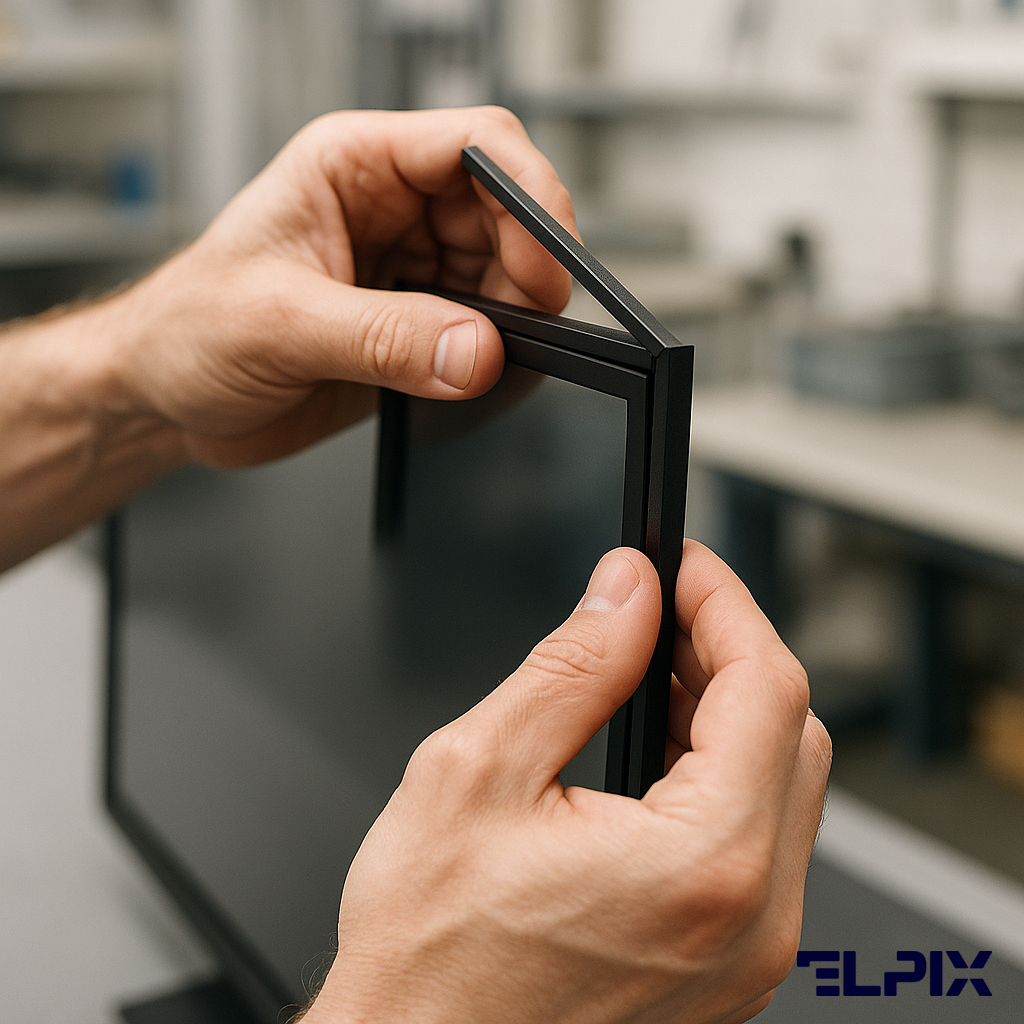
An infrared touch frame comes in specific diagonals: 32″, 43″, 50″, 55″, 65″, 75″, 85″, 86″, 98″, 110″. The fit tolerance is ±2 mm, so it’s better to measure the panel’s outer dimensions, not the diagonal printed on the box. We see the same mistake over and over: someone grabs a “55” for a 55″,” then finds the frame jams against a non-standard display housing. Elpix frames ship with mounting brackets for fixed installation and clips for mobile stands.
The display brand barely matters. The frame mounts on the outside and never touches the screen’s internal electronics. All you need is a USB port on the host device: a PC, a tablet, an all-in-one, or a media player. Is that overkill? For a 50-page website, maybe. For a 65″ screen in a meeting room, no — there a compatibility error costs more.
Number of touch points (multitouch)
For most teaching and office tasks, 10 simultaneous touches is plenty. Multitouch at 20–40 points matters where several people work on the screen at once or the software uses two-handed gestures: pinch-to-zoom, rotating objects, complex interactive scenes. Elpix has base models at 10 touches and extended ones at 20. Counterintuitively, more points isn’t always the better choice; sometimes it’s just an extra line on the spec sheet.
Elpix touch frames
Elpix manufactures touch frames in Ukraine and controls assembly at every stage. The 6063-T5 aluminum housing with an anodized finish doesn’t warp under heat in 24/7 operation. Two interfaces — USB HID and RS232 — cover both ordinary and industrial control systems. On Windows, Linux, and Android the frame is recognized with no driver install and calibrates automatically at startup; manual setup after mounting usually isn’t needed. Two-year warranty, service support in Ukraine.
Available diagonals: 32″, 43″, 50″, 55″, 65″, 75″, 85″, 86″, 98″. Non-standard sizes are made to order. You can order a single frame for a corporate project or a batch for an integrator or distributor. In short: it scales fine.
Elpix also supplies ready-made kits: an interactive panel with a built-in Android module, or a separate display with a frame and a mini-PC. The choice depends on the project, the budget, and what’s already on site. Yes, that contradicts the “just buy a frame” idea from two paragraphs up — but in real projects a kit sometimes saves more time than a standalone upgrade.
Technical requirements and software compatibility
To the operating system, an infrared touch frame looks like a standard USB HID Pointer-class device (Usage Page 0x0D, Digitizer). Windows handles touches through WM_TOUCH / the Pointer API, Linux through evdev and libinput, Android through InputDevice TYPE_TOUCHSCREEN. Software for interactive displays — including SMART Notebook, Promethean ActivInspire, iBoard Tech, OpenBoard, and most corporate whiteboard solutions — receives the events from the OS in a standard format. Usually there’s nothing to configure separately.
For integrators there’s one extra detail: Elpix frames support TUIO through an additional USB bridge. That’s needed by apps built on Flash, Processing, or custom kiosk frameworks that don’t talk to the native HID stack. TUIO sends touch data over the local network via UDP/OSC, so the touch display can drive content on the host machine across the network. Sounds narrow? It is. But when a project needs exactly that stack, it stalls fast without it.
In digital signage, Elpix frames work with BrightSign OS, Scala, Mvix, and other media players as long as the device firmware supports USB HID. Current firmware versions usually have that support.
Installation and setup
Mounting an infrared touch frame takes 15–20 minutes. No special tools required:
- Stand the display upright on a stand or fix it to the wall.
- Place the frame against the front of the display and line up the corner holes.
- Secure the frame with the supplied brackets or double-sided mounting tape from the kit.
- Connect the USB cable to the PC or media player.
- Wait for the system to detect the HID device. Usually 5–10 seconds.
- Run the initial 9-point calibration through the utility from the disc or the website. It takes about 60 seconds.
After calibration the frame stores its settings in built-in memory. You don’t repeat the procedure the next time you connect. If you change the host device or reinstall the OS, it’s better to recalibrate. Skip that step and you’ll be chasing touch offset at the edges later.
On Linux the device is recognized as an evdev interface with no extra packages, from kernel 2.6.35 onward. On Android you need OTG mode and USB HID support in the firmware. For most Android 7+ media players that’s already standard.
Does a touch frame work with any monitor?
Yes. An infrared touch frame doesn’t depend on the panel type, the brand, or the display technology. It works with LCD, LED, OLED, projection screens, and transparent display-case panels. You just need to match the frame to the screen size within a ±2 mm tolerance on the panel’s outer dimensions and connect it to a device with a USB port.
How many touch points does a touch frame support?
Elpix frames come in two versions: 10-point multitouch for most teaching and office tasks, and 20-point for public installations and software with complex gestures. The exact number of touches depends on the model and is listed in the specification. When ordering, it’s best to describe the scenario up front: classroom, meeting room, display case, or kiosk.
Do you need to install drivers for a touch frame?
For Windows 7/8/10/11 and most Linux distributions (kernel 2.6+), no drivers are needed. The frame is recognized as a standard HID device, much like a USB mouse. A driver is only required for advanced features: configuration settings, controller firmware updates, or operation in an environment without USB HID, such as some embedded systems. For Android you need USB OTG and HID support in the firmware.
What’s the difference between an IR and a capacitive frame?
An IR frame works through a grid of infrared beams above the screen. Any object that breaks a beam counts as a touch: a finger, a glove, a stylus, a pointer. A frame like that works even through protective glass up to 20 mm thick. A capacitive frame, or PCAP overlay, reacts to a change in the capacitive field and requires direct contact between a finger or capacitive stylus and the surface. For display cases, industrial screens, and gloved operation, people choose IR.