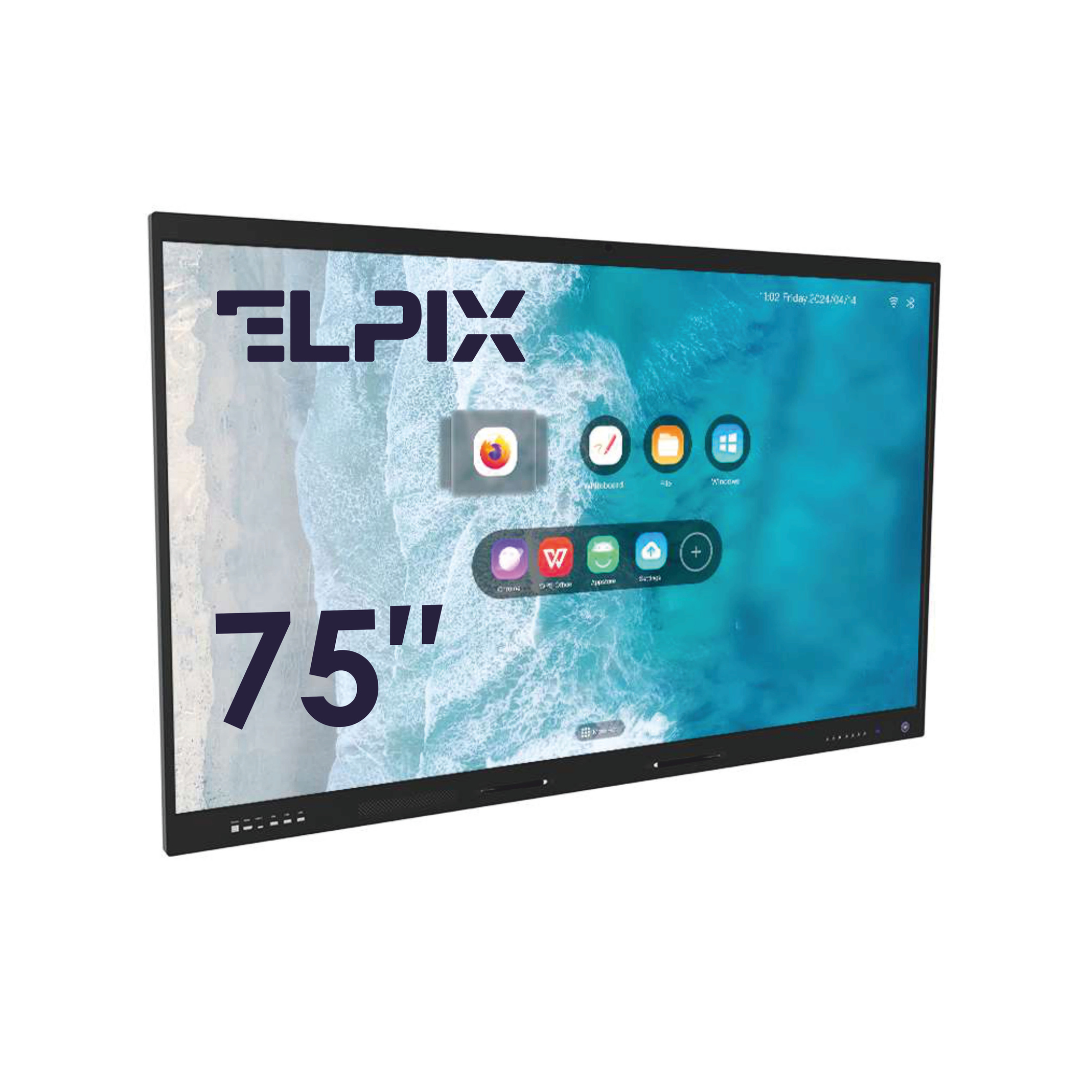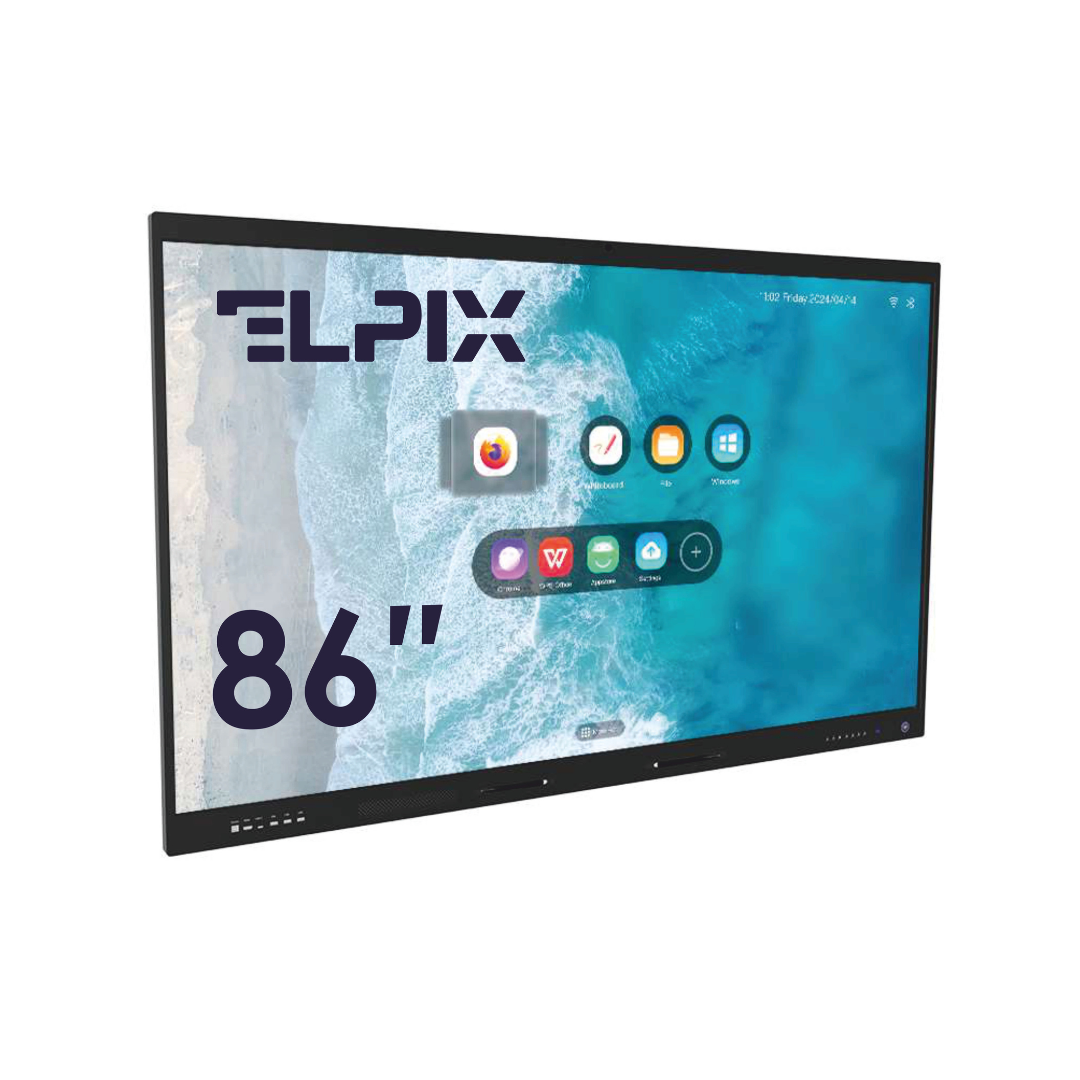

You choose an interactive panel by three things: the screen size for the room, the resolution, and the operating system your software needs. Decide where the panel will live and who will use it first — then look at specific models. Everything else follows from those three calls.
What an interactive panel is, and how it differs from a whiteboard
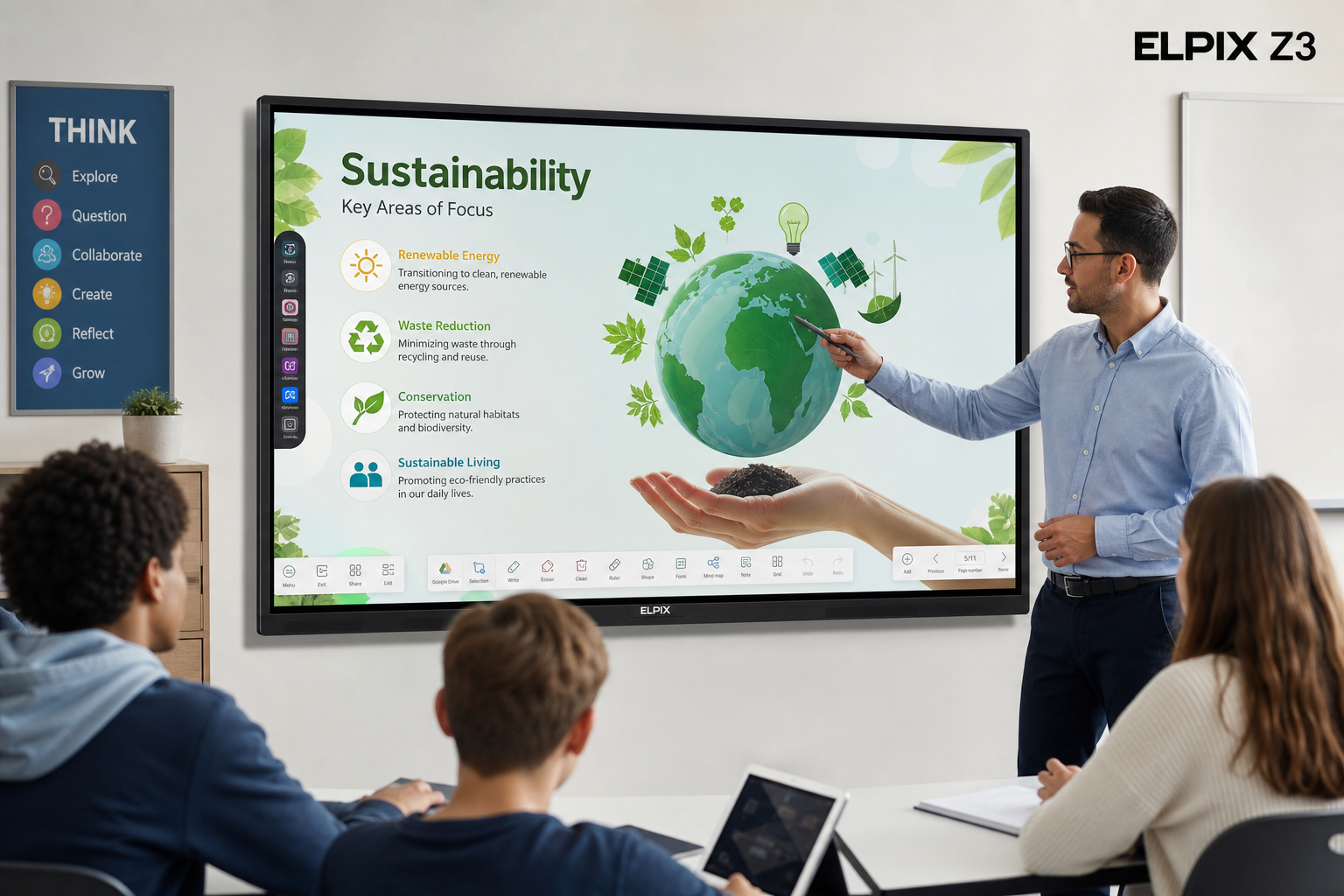
An interactive panel is a touchscreen monoblock with a built-in computer and software that replaces a projector, a board, and a PC in one body. Instead of three devices on the wall you have a single screen: you write on it with your finger, open files, mirror a laptop, and work in a browser. No separate system unit, and no need to dim the room.
The main difference from an ordinary display is simple. You don’t just show content on a panel — you work with it. A teacher solves a problem right on the screen, an engineer draws over a schematic, a manager edits a table mid-meeting. All of it saves to a file and goes to participants by email or QR code. In my experience that one detail — “it didn’t get wiped, it became a file” — is what usually wins over the people who doubted it at first.
Panel vs projector and TV
A projector plus a marker board was the standard for years, and its weak spots are well known. The lamp dims, you have to dim the room with blinds, a hand throws a shadow across the image, and the board needs constant cleaning and fresh markers. A panel removes all that with an LED screen, a touch layer, and built-in software. Count the running costs and maintenance rather than just the purchase price, and a panel often comes out ahead within three to four years.
A TV sometimes gets offered as the cheap alternative, and here the gap is fundamental. A TV isn’t touch — it only displays. You can’t write, drag objects, or run apps on it without an external PC. A consumer set is also built for home viewing, not for hundreds of touches a day and a full working day of use. So a panel is a separate class of hardware with its own durability, not “a TV with touch.”
How to choose: size, resolution, operating system
The choice starts with the room, not the model. Three parameters decide almost everything, and it’s worth checking them in this order.
Size — by the distance to the back row
The rule is plain: the farther the last viewer sits, the larger the screen you need, or small text, tables, and formulas stop being readable. For a class of 25–30 with the back desk six or seven meters away, 86 inches is the usual pick — a smaller screen loses detail for the back rows. For a meeting room of 8–10 people, 65–75 inches is often enough. For a large hall or a situation center, you go to 98 inches.
It’s easy to err the other way too. It feels logical to grab the biggest screen available — 98 inches sounds convincing. But for a small room that’s overkill: people sit too close, eyes tire, and the panel swallows the whole wall. The size should match the room, not the ambition.
Resolution — 4K as the practical baseline
For modern panels, resolution means 4K UHD (3840 × 2160). At sizes from 65 inches up that’s no longer marketing but a necessity: with Full HD the pixel structure shows on a screen that large, and small text in tables and drawings reads worse. 4K keeps the image sharp even when someone steps right up to write on it by hand.
Operating system — Android, Windows, or both
A built-in Android system ships in every panel by default. It boots in seconds and runs a whiteboard, a browser, a file viewer, and wireless sharing. For most lessons and presentations that’s enough — no separate computer required.
You add Windows when you need specific programs: AutoCAD, accounting software, specialized tools, or the full Office suite. For that the panel takes an OPS module — a computer in slot-card form that slides into a rear bay with no extra cables. The result is two systems in one device, switched with a single button. You don’t have to buy the panel with OPS from the start: the module can go in later, once the workload grows.
The Elpix range: the Z3 series and the compact Z5
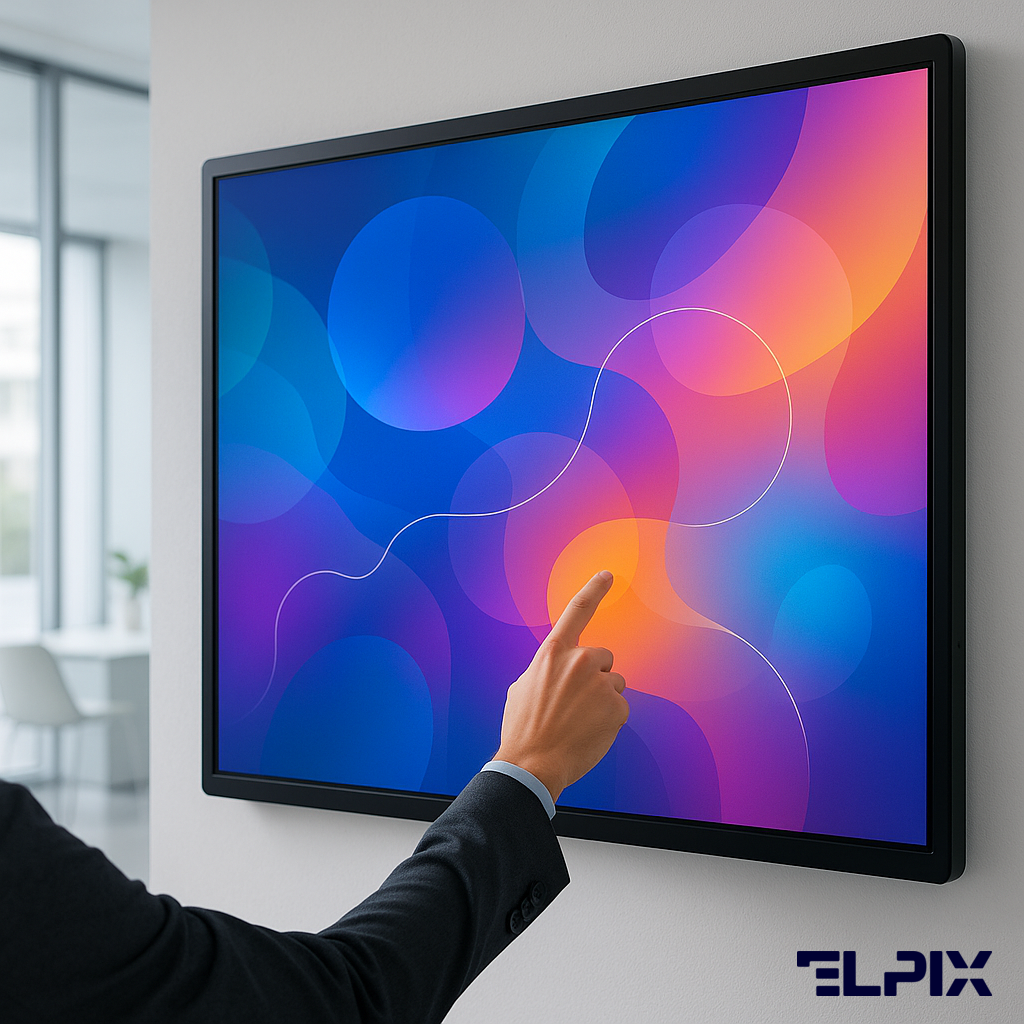
The Elpix interactive panel line is built around the Z3 series — the main workhorse panels for a classroom, meeting room, or conference hall, in the large sizes (65″, 75″, 86″, 98″). The Z3 comes in two versions that differ by processor and memory: a basic one on the Amlogic A311D2 (8 GB / 128 GB) and a more powerful one on the RK3588 (16 GB / 256 GB). Both support 40 simultaneous touches and 4K — the stronger version adds more memory, higher contrast, Wi-Fi 6, and a wider set of ports. Separately, there’s a compact Z5 series in 32″ and 43″ — a solution for small spaces, reception desks, and kiosks, not the senior or most powerful line.
| Z3 version | Processor | Memory / storage | Touch | Best for |
|---|---|---|---|---|
| Basic (A311D2) | Amlogic A311D2 | 8 GB / 128 GB | 40 points | lessons, presentations, whiteboard |
| Powerful (RK3588) | RK3588 | 16 GB / 256 GB | 40 points | heavy use, several windows, demanding content |
The basic Z3 covers everyday work: running a lesson, opening presentations, writing on the board. If the panel runs all day, across different groups and with demanding content — several windows, a whole group working at the screen, smooth dragging of large objects — the RK3588 version with 16 GB makes sense. For small offices, reception desks, and kiosks, the compact Elpix Z5 in 32″ or 43″ is the fit.
What’s in the box
The base package ships with a wall mount, a remote, styluses, and the built-in Android system. The education software set adds ruled-paper templates, a coordinate grid, geometric shapes, and a compass — everything that replaces the physical tools at the board. That’s enough to start working on installation day.
Beyond that, you order what your scenario calls for:
- a wheeled stand if the screen needs to move between rooms;
- a Windows OPS module for specialized programs;
- a document camera to put notebooks and physical objects on the screen;
- network accessories for corporate connectivity.
Interactive panel for school and for business
The jobs in a classroom and a meeting room are different, so the requirements differ too. This is the case where “one universal model for everyone” is a weak answer rather than a strong one.
For schools
For a classroom the priorities are a large size (86 inches is the standard for a typical class), tough glass that survives daily use and the odd knock, and built-in lesson software. Support for ten or more simultaneous touches matters — so several students can work at the board at once. The learning curve for a teacher is low: the interface is closer to a tablet than a computer and clicks into place within a couple of lessons. Honestly, the value of a panel in a school isn’t the “nice picture” — it’s that what gets written during a lesson isn’t wiped off with a cloth but saved and handed back to students as a file.
For business
In an office the priorities flip. First comes wireless screen sharing from a laptop or phone, so anyone in the meeting can put up their presentation without hunting for an adapter. Next, compatibility with Zoom and Microsoft Teams for video calls, and a tidy look for the meeting room. The size here is more often 65–75 inches, because the rooms are smaller and people sit closer. A big screen on its own isn’t the main argument: without convenient sharing, an expensive panel quickly turns into a display case.
Warranty, delivery, and setup
These count for as much as the screen size. Elpix is a Ukrainian manufacturer, and that shapes the service directly: the warranty is official, with support inside the country. There’s no shipping hardware abroad and waiting months for a repair — parts and service modules are on hand, so diagnosis and replacement move quickly.
Delivery covers all of Ukraine. Large sizes carry real weight and bulk, so 86″ and 98″ travel in factory packaging with a rigid crate, with the fragility of the glass in mind. By arrangement, technicians come out to install: they hang the panel or assemble a wheeled stand, connect power and network, and fit the OPS module if it’s in the order. After setup comes a short staff training session — how to write on the board, mirror a laptop, and save and send materials. Skip that step and it’s easy to buy the hardware but never make it part of the daily routine.
Leave a request and a manager will match a model to your classroom, office, or task and work out the cost for your budget. My advice is simple: settle the room and the use case first, then choose between 65, 75, 86, and 98 inches.
How is an interactive panel better than a projector?
A panel is brighter, readable in daylight, casts no hand shadow, and needs no lamps, markers, or erasers. Everything written on the screen saves to a file, which makes it more convenient for lessons, meetings, and presentations.
What size should I choose for a classroom?
For a standard class of 25–30, 86 inches is the usual choice so students at the back can see text, tables, and formulas. For smaller rooms and groups, 75 inches is often enough.
Do I need a separate computer?
No. The Elpix panel has a built-in Android system with a whiteboard, a browser, a file viewer, and wireless sharing. A Windows OPS module is added only for programs like AutoCAD, accounting software, or other specialized tools.
How long does an interactive panel last?
A panel is built for daily use in a school or office, and the LED matrix is rated in tens of thousands of hours. The actual service life depends on the usage pattern, the installation, and the room conditions.