


When choosing an interactive panel, a common question arises: do you need an OPS computer if the panel already runs Android? An additional module increases the cost of the configuration, but it allows you to use Windows and software that cannot run on the built-in operating system.
For presentations, a digital whiteboard, web browsing and multimedia content, Android is often sufficient. However, an OPS computer may be a practical choice for specialized Windows software, certain enterprise systems or resource-intensive tasks.
Let’s look at the differences between an interactive panel with and without OPS, when to choose an Intel Core i5 or i7 module, and what to check before placing an order.
What Is an OPS Computer for an Interactive Panel?
OPS (Open Pluggable Specification) is a standard for connecting a modular computer to a compatible display. An OPS computer fits into a dedicated slot in the panel and serves as a separate PC without taking up desk space or requiring an external video cable between the computer and the display.
The module contains a processor, RAM, SSD storage and the necessary interfaces. Depending on the configuration, it can run Windows and software designed for that operating system.
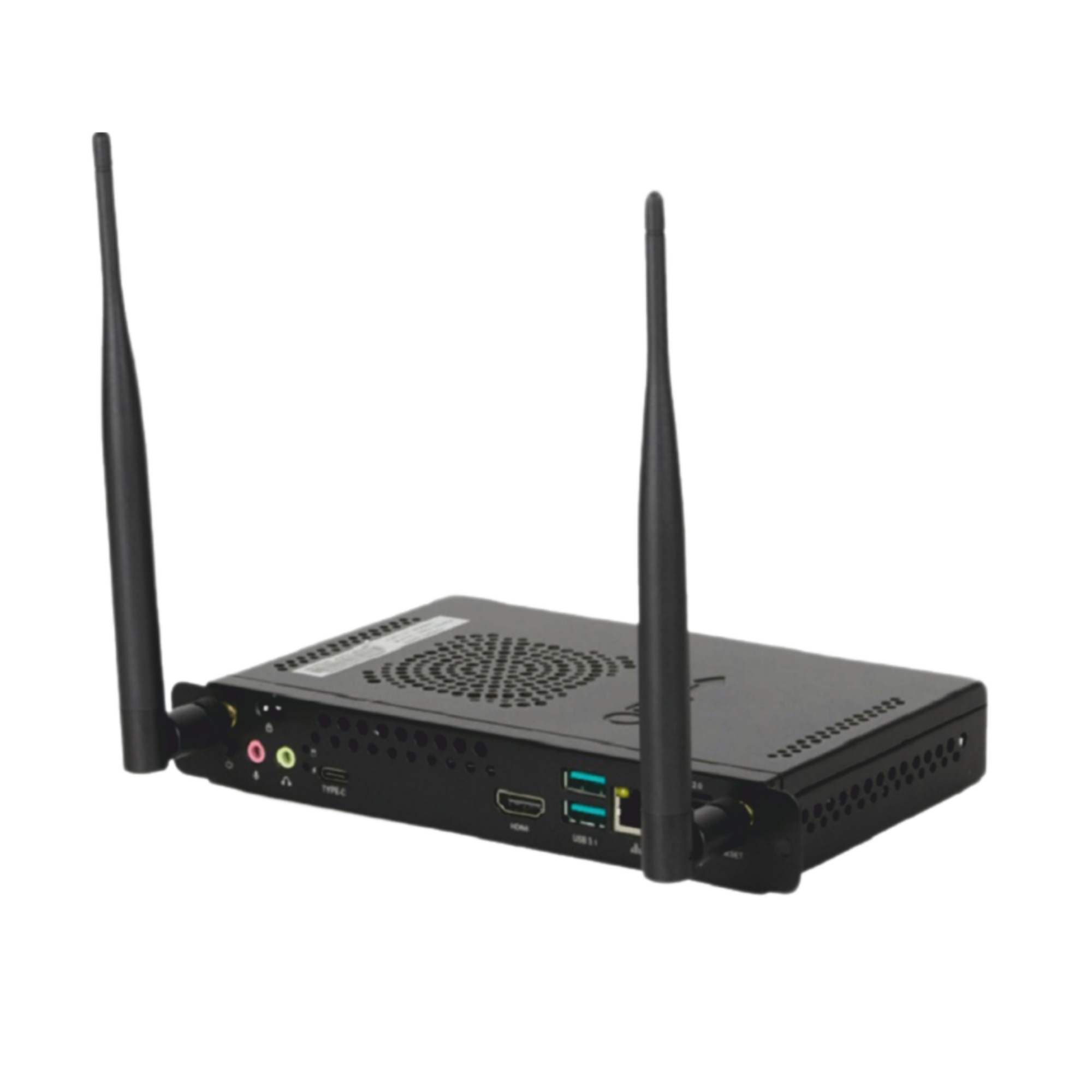
- No external desktop computer. The computer is installed inside the panel’s enclosure.
- Separate operating systems. Android and Windows remain two distinct working environments.
- Modular design. A compatible OPS module can be serviced or replaced without replacing the panel itself.
Important: OPS does not speed up the Android processor or turn Android into Windows. Once the module is installed, users switch to the appropriate input or operating mode and use the OPS computer’s processing resources.
How Does an Interactive Panel Work Without OPS?
Interactive panels with a built-in Android operating system are standalone devices. They already have a processor, RAM, storage, touch controls and display capabilities, so an external computer is not necessary for basic tasks.
- using a digital whiteboard, handwritten notes and diagrams;
- opening presentations, documents, videos and educational content;
- browsing the web and using compatible Android apps;
- wirelessly sharing content from other devices (if supported);
- holding online meetings with compatible software, a camera and a microphone.
These capabilities are often enough for lessons, everyday presentations and viewing content. The main limitation is that Windows applications cannot be installed directly on Android. If a specific Windows application is required, you will need an OPS module or an external PC.
When Does an Interactive Panel Need OPS?
1. For Specialized Windows Software
OPS makes sense when a school or company uses applications that have no Android or browser version, such as certain educational systems, enterprise apps, design tools or other specialized software. Before purchasing, check the compatibility and system requirements of each application.
2. For Large Files and Multitasking
When large spreadsheets, documents, analytics platforms and multiple Windows applications are open simultaneously, processor performance, sufficient RAM and SSD speed become important. Choose the configuration according to the actual workload.
3. For Meeting and Conference Rooms
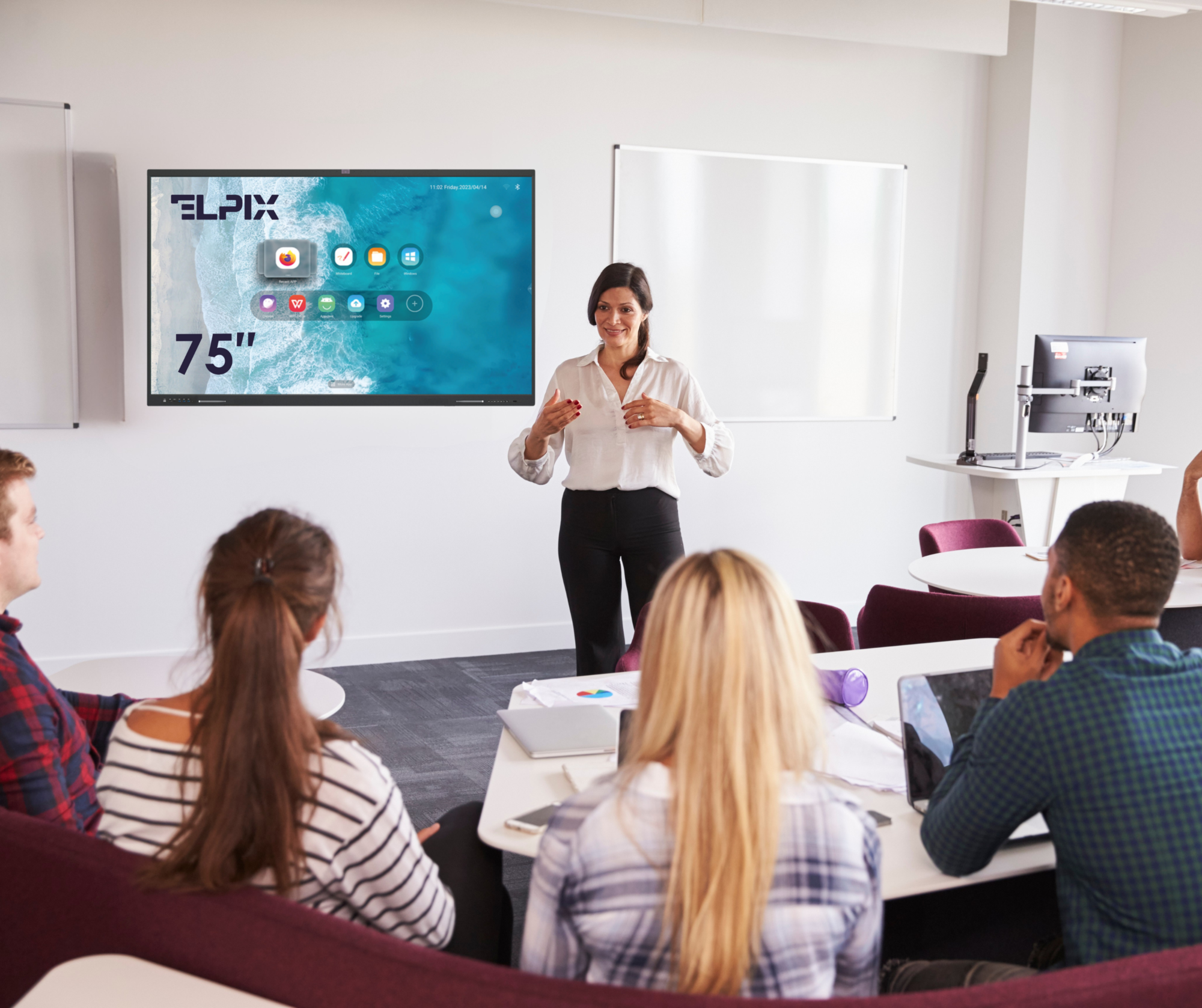
A panel with OPS can serve as a permanent workstation for presentations and meetings. Windows applications stay installed on the shared device, so users do not have to connect a personal laptop every time they need those applications.
4. For Educational Institutions
Android is often sufficient for standard digital whiteboard tasks. OPS becomes useful when teachers need Windows-based educational software, simulators or other applications with specific system requirements.
5. For Technical Project Presentations
Working with drawings, 3D models or professional engineering software may call for a more powerful OPS module, including additional graphics resources. The deciding factor is the software’s requirements, not simply whether the panel has an OPS module.
Interactive Panel With or Without OPS: Comparison
| Feature | Without OPS | With OPS |
|---|---|---|
| Operating system | Built-in Android | Android + separate Windows computer |
| Operation without an external PC | Yes, using Android | Yes, using Android or OPS |
| Windows applications | Requires an external PC or a compatible alternative | Can run on the OPS computer |
| Presentations, websites and videos | Yes | Yes |
| Specialized software | Depends on Android compatibility | Depends on system requirements and Windows compatibility |
| Separate cables to a computer | Not required for Android | Not required for OPS |
| Configuration cost | Lower | Higher due to the computer module |
| PC upgrades | Depends on the panel’s design | A compatible OPS module can be replaced |
Practical takeaway: if all required tasks run on Android, OPS is optional. If you need a permanent Windows workstation without a separate computer, a panel with OPS is worth considering.
OPS Intel Core i5 or i7: Which Should You Choose?
For ELPIX Z3 interactive panels, configurations with Intel Core i5 and Intel Core i7 OPS modules are available. The difference matters primarily for software that requires greater processor or graphics performance.
OPS Intel Core i5 — for Everyday Tasks
For example, ELPIX offers a configuration with Intel Core i5-13450HX, 16 GB RAM, 512 GB SSD and Windows 11 Pro. This option can be considered for office applications, presentations, web browsing, video calls and typical educational software, subject to the applications’ requirements.
OPS Intel Core i7 — for More Demanding Applications
ELPIX also offers an OPS configuration with Intel Core i7, NVIDIA GeForce RTX 3050 Mobile, 16 GB RAM, 1 TB SSD and Windows 11 Pro. It may be suitable for certain graphics-intensive applications, engineering software and more demanding multitasking.
An i7 is not always the better choice: an i5 is sufficient for many educational and office scenarios. Compare not only processor names but also memory, graphics, storage and the software’s recommended system requirements.
OPS or an External Laptop: Which Is More Convenient?
You can use Windows with an interactive panel without OPS by connecting a laptop or desktop computer. This is a useful alternative when employees work with their own files and software and do not need a dedicated computer at the panel.
- OPS: for a permanent meeting room, classroom or regular meetings using the same set of Windows applications.
- External laptop: for occasional presentations, personal work environments and off-site presentations.
Depending on the model, HDMI or USB-C can be used to transmit video. To control an external computer through the touchscreen, a compatible touch-data connection is also required, such as USB Touch or fully featured USB-C.
What to Check Before Ordering
- Compatibility. OPS format, slot, power supply and support for the specific panel model.
- System requirements. Processor, RAM, SSD and graphics capabilities required by the intended applications.
- Operating system. Whether a Windows license is included in the configuration.
- Peripherals. Connectivity for cameras, microphones, printers and other devices.
- Administration. Windows updates, data protection, access permissions and technical support.
These points should be agreed upon before purchasing, especially for educational institutions, government agencies and corporate facilities.
ELPIX Z3 Interactive Panels: Android and Windows Configurations
Ukrainian manufacturer ELPIX offers Z3 interactive panels with 4K displays, built-in Android and support for installing a compatible OPS computer. Availability of a particular module and the panel specifications should be checked for the selected model.
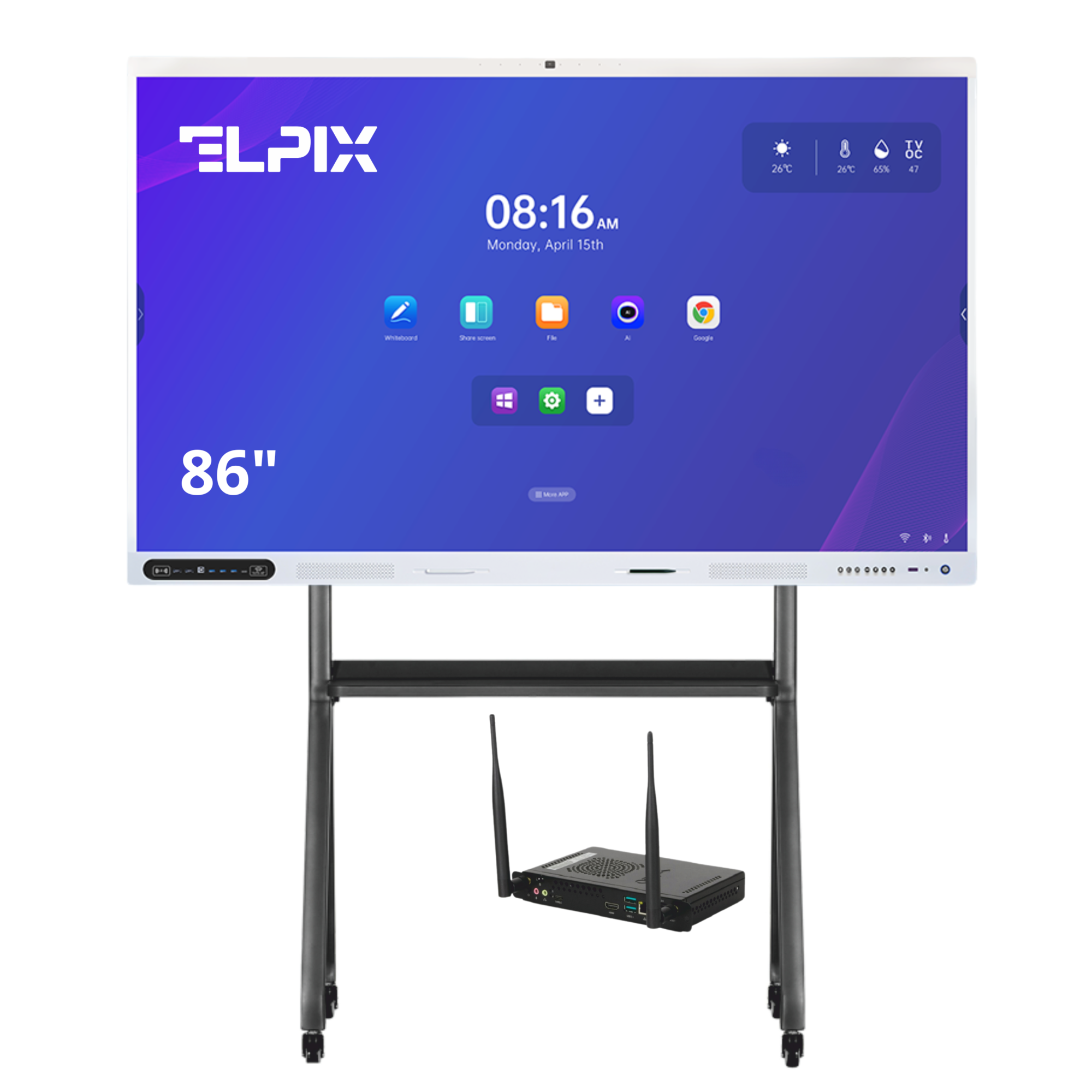
Depending on the customer’s needs, the panel can be ordered without OPS for Android-based tasks, with an Intel Core i5 OPS module for everyday Windows applications, or with an Intel Core i7 OPS module for more demanding work. A mobile stand can also be added if required.

ELPIX Z3 65″ Interactive Panel
A practical size for classrooms, offices and smaller meeting rooms.

ELPIX Z3 75″ Interactive Panel
For larger classrooms, presentations, group work and conference rooms.

ELPIX Z3 98″ Interactive Panel
A large screen for auditoriums, major presentations and situation centers.
OPS compatibility and available configurations can be selected on each panel’s product page.
Browse the full range in the ELPIX interactive panel catalog.
Which Configuration Should You Choose?
Without OPS — if your main tasks run on Android: lessons, presentations, digital whiteboarding, videos and web services. With OPS i5 — if you regularly need Windows for standard educational or office applications. With OPS i7 — if particular applications have higher performance requirements.
If Windows is needed only occasionally, connecting a laptop may be a practical alternative. ELPIX can help you choose an interactive panel based on screen size, OPS configuration, software requirements and installation conditions. For advice, explore ELPIX panels or contact the company.