Interactive whiteboards for education look very different today than they did five years ago. What once required a separate projector, an infrared frame, and constant recalibration is now a self-contained touchscreen panel with a 4K display, built-in Android, Wi-Fi, and noise-canceling microphones. The difference is fundamental. This article explains what a touchboard really is in 2024, how it differs from a classic projector setup and a traditional whiteboard, how to run a full online lesson with an interactive panel, and what to look for when selecting equipment for a Ukrainian school or corporate training center.
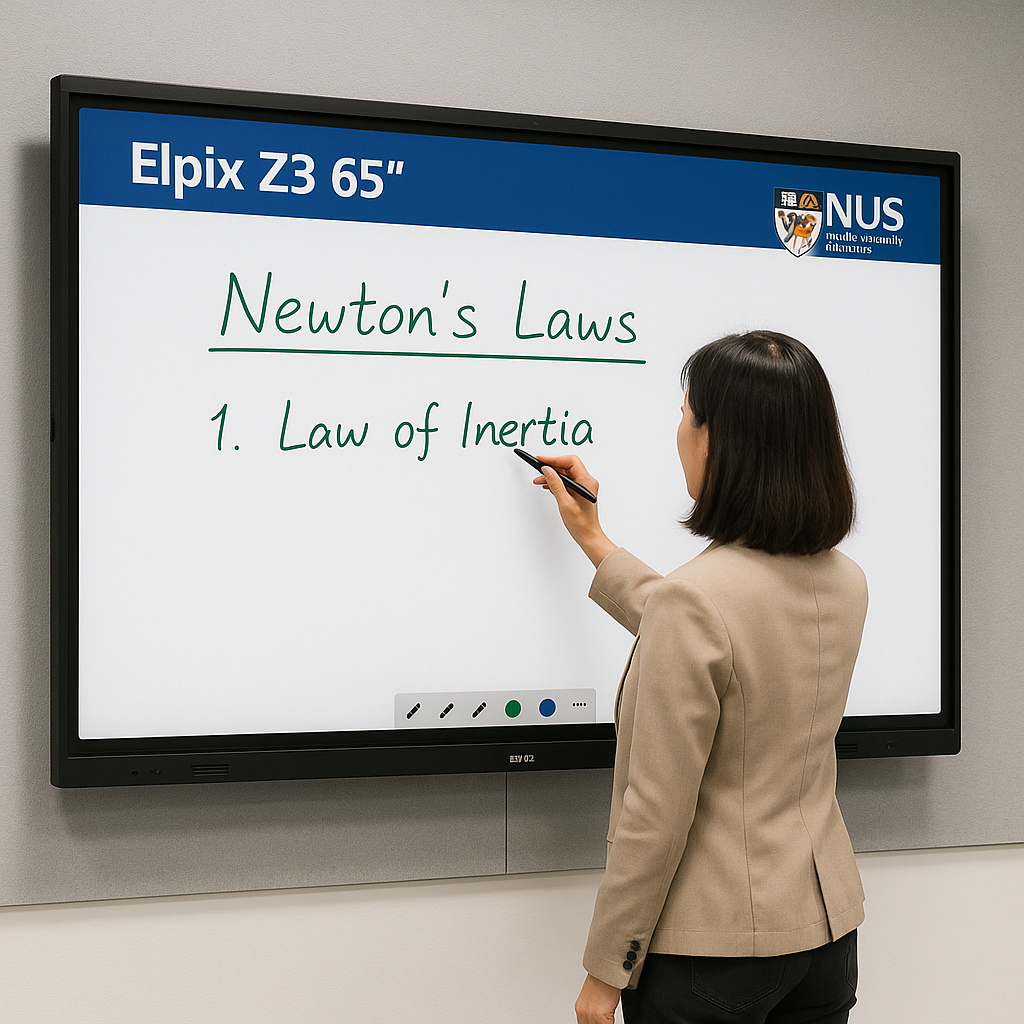
The short answer: an interactive whiteboard for education is a large touchscreen that responds to finger or stylus input and lets you control all content directly on the screen. No chalk, no markers, no separate projector. One device replaces three at once.
The technical picture is more precise. A modern interactive touch panel for school is an LCD or LED display with an infrared or optical multitouch layer. On top sits 3–4 mm of laminated anti-glare tempered glass. Inside: an ARM-class processor (such as the Rockchip RK3588), 4–8 GB of RAM, and 32–64 GB of internal storage. The operating system is Android 11 or 13 in most current models, with an OPS slot for a Windows module when specialized corporate or educational software is needed.
In practice this means: a teacher walks in, presses the power button, and eight seconds later the screen is ready. Opens a browser, loads a presentation or educational platform, starts explaining — swipes, highlights, writes with a stylus, saves to the cloud, shares with students via QR code. The whole operation takes seconds. No calibration. No “wait for the lamp to warm up.”
The terms “interactive whiteboard,” “interactive panel,” “touch panel,” and “multimedia board” are used interchangeably in Ukrainian educational and business contexts today. Technically there is a difference: the classic first-generation interactive whiteboard required a projector and IR frame as external components, while the modern panel is a standalone device. But in the 2024 market, when someone says “interactive board for school,” they almost always mean the panel-monoblock with no separate projector. You can browse current models in the Elpix interactive panel catalog.
This question comes up at every school procurement process. Let’s compare them on honest criteria — not marketing brochures, but what actually happens in a classroom every day. Neither format is inherently bad; they suit different scenarios, and the task is to figure out which one fits your school.
| Parameter | Chalk / Marker Board | Projector + IR Board | Interactive Touch Panel |
|---|---|---|---|
| Brightness / Visibility | Depends on lighting; chalk fades | Drops sharply in daylight | 350–450 cd/m², stable in any lighting |
| Multitouch | None | 1–2 points (IR frame) | 20+ simultaneous touch points |
| Resolution | — | Full HD (typically) | 4K UHD 3840 × 2160 |
| Calibration | — | Required after every move | Not required |
| Noise | None | 35–45 dB (cooling fan) | Silent operation |
| Consumables | Chalk, markers, erasers — regular cost | Lamp every 3,000–5,000 hours | None (styluses optional) |
| Light source lifespan | — | 3,000–5,000 h (lamp) / up to 20,000 h (laser) | 50,000 h LED backlight |
| Saving lessons | No (phone photo only) | Partial, software-dependent | Yes: cloud, QR code, PDF, screen recording |
| Works without a computer | Yes | No | Yes (built-in Android) |
| Video call with the class | No | Only with webcam + PC | Yes, built-in camera + microphone |
A chalk board is cheaper to buy but more expensive in real operation — and that is not just about money. Every time a teacher writes on a chalk board, a portion of the lesson’s time is spent on the mechanics: write, erase, write again. Cannot save, cannot zoom, cannot send to a student. This was the norm for older schools, but in a modern digital classroom it actively slows down learning.
A projector looks like the budget-friendly option at first glance. On second look, it generates hidden costs. Fan noise during a lesson is physically tiring and reduces concentration. Recalibration after every move. A lamp that “suddenly” burns out thirty minutes before class. Glare from windows that forces teachers to keep blinds closed all day, eliminating the natural light that modern classroom design actively encourages. Projectors are not bad devices — but their problems are invisible on the price list and very visible in the classroom.
“We explain it simply to clients: calculate how much one projector lamp costs per year. Then multiply by the number of classrooms. Then add the time a teacher spends on setup and calibration. The price gap between a projector and a panel closes quickly.” — Elpix
The standard mistake when buying: focusing only on price and screen size. But the screen diagonal is the first parameter that determines whether the device will actually be useful in a specific room — or simply large and invisible from the back rows. Choosing a screen that is too small for a large classroom means spending the budget without solving the problem.
The empirical rule: the farthest point in the room should be no more than four times the screen height away from the display. For an 86-inch screen, the panel height is approximately 1.07 m — meaning the maximum comfortable viewing distance to the back row is about 4.3 m. If the room is longer, consider 98″.
| Room Area | Distance to Screen | Recommended Diagonal | Typical Use Case |
|---|---|---|---|
| Up to 25 m² | Up to 3.5 m | 55–65″ | Small classroom, group up to 15 people |
| 25–45 m² | 3.5–5 m | 75″ | Medium classroom, meeting room |
| 45–70 m² | 5–8 m | 86″ | Standard classroom (30+ students) |
| 70 m² and above | 8 m+ | 98″+ | Auditorium, large conference room |
For a standard classroom of 50–55 m², 86 inches is the optimal diagonal. For smaller rooms or group sessions up to 20 people, the Elpix Z3 65″ interactive panel is an excellent fit. For compact offices, individual tutoring rooms, or as a secondary screen in a teachers’ lounge, the Elpix Z5 32″ with its built-in PC is a practical choice.
One detail that is frequently overlooked: the viewing angle of the display matrix. IPS panels provide 178° viewing angles both horizontally and vertically — meaning a student sitting at the far edge of the room sees the same colors and contrast as someone sitting directly in front. VA panels narrow sharply at the edges. For a classroom with wide seating spread, this is a meaningful difference. Anti-glare coating is equally important: it reduces light reflection from 4–8% (standard glass) to 1–2%, and the difference is visible to the naked eye on a sunny day.
There are more parameters that meaningfully affect day-to-day usability than price and screen size. Some of them don’t show up in the store or at installation — they reveal themselves six months into daily use, when switching is inconvenient. Let’s go through the key specifications to evaluate when choosing an interactive panel.
Resolution. The market standard for 65″+ panels in 2024 is 4K UHD (3840 × 2160). Full HD on a large diagonal looks noticeably worse: pixels appear soft, small text is blurry. A Full HD panel offered at a lower price is a compromise that shows up every day when working with any document or web page.
Multitouch. The minimum acceptable value is 10 points. The education standard is 20 points. Why does this matter? Group work: several students interact with the same panel simultaneously. Or a teacher writes with one hand while navigating the menu with the other. Twenty touch points is not a marketing figure — it is what allows multiple people to make different gestures on the same screen simultaneously without input conflicts.
Operating System. The meaningful choice is between Android and Windows:
| Parameter | Android 11/13 (built-in) | Windows (OPS module) |
|---|---|---|
| Cost | Included in base price | Additional (optional module) |
| Boot time | 6–8 seconds | 30–60 seconds |
| Browser-based platforms | Full support | Full support |
| Google Workspace | Native | Via browser |
| Specialized Windows software | Not supported | Yes (1C, AutoCAD, specialized packages) |
| Updates | OTA over-the-air | Windows Update |
| Suitable for most schools | Yes, in the majority of cases | Only for specific software requirements |
For most schools, the built-in Android 11 or 13 is entirely sufficient. The core educational platforms — Kahoot, Quizlet, Google Classroom, Microsoft Teams for Education, YouTube — are all browser-based or have Android apps. An OPS Windows module is only needed when the school relies on Windows-specific software with no browser equivalent.
Built-in audio. Speakers rated at 2 × 10 W are the minimum floor for a classroom. A 50–70 m² room needs at least 2 × 20 W — otherwise students in the back rows catch only the general shape of what is being said. Elpix Z3 panels are equipped with 2 × 20 W audio, sufficient for a standard classroom without an external sound system.
OPS slot. Open Pluggable Specification is a standardized connector for a Windows module. The advantage over an external laptop: no external cables, the module sits inside the panel chassis. If a classroom needs both Windows and Android running simultaneously, OPS allows switching between them without rebooting.
Yes, and this is one of the key advantages of modern panels over first-generation interactive whiteboards. The old “projector plus IR board” setup required a connected PC as a mandatory component. A modern panel monoblock is a fully self-contained device with its own processor, memory, operating system, and network access.
What a teacher can do on the panel without any external computer:
“The first two weeks teachers use the panel as a large monitor. Then, after a short training session, they discover the annotation tools — and it becomes an entirely different lesson dynamic.” — Elpix
When is an external computer still needed? When the school uses specific Windows software: specialized subject-matter packages or professional tools with no browser-based equivalent. In that case, a laptop connects via HDMI or USB-C, and the panel becomes a large touch monitor — the teacher controls the laptop directly on the panel screen. Both modes — standalone Android and external monitor — switch with a single button press on the remote.
There is one more useful scenario: the panel is connected to the school network via LAN, and students access it from their own devices via QR code or link, seeing the panel screen in real time. This is not a video stream — it is local-network screen mirroring with minimal latency. Useful for collaborative work: a student works on their phone and sees the result on the large screen immediately.
An online interactive whiteboard session means the panel becomes the hub of a remote lesson. The teacher is in the classroom or at home; students can be anywhere. Everything happening on screen is broadcast through Zoom, Google Meet, Microsoft Teams, or any other video conferencing platform.
How it works technically. The panel’s built-in camera captures the teacher and the classroom. The built-in microphone picks up the teacher’s voice with background noise suppression. System screen sharing broadcasts whatever happens on the board: the teacher writes with a stylus, draws diagrams, opens web pages, plays video. A remote student sees all of this in real time on their own device — smartphone, tablet, or laptop.
Several details that significantly affect the quality of a remote lesson:
The hybrid format — part of the class in the room, part at home — is exactly the scenario where a panel outperforms every alternative. A laptop camera captures only the teacher. A panel with a wide-angle built-in camera captures the teacher, the board, and the audience all in one frame. That is a materially different experience for the remote student, and it shows from the very first hybrid lesson.
“During distance learning, we noticed that teachers using panels had significantly higher student engagement. Simply because the class saw something live — not a static slide deck being clicked through.” — Elpix
Zoom, Google Meet, and Microsoft Teams all install from the Play Store or open in Chrome on Android. All three platforms officially support Android. Lesson recording is available either through the platform itself or through the panel’s built-in screen recorder. Students who missed a lesson receive the recording via Google Classroom — no extra configuration required.
The mounting question is resolved at the planning stage — retrofitting later is more expensive and time-consuming. Two main options: permanent wall mounting and a mobile stand on casters. The choice depends on the room type, how the panel will be used, and whether the space allows for structural work.
Wall mounting is the standard for most school classrooms. A VESA bracket (400×400, 600×400, or 800×400 depending on diagonal) mounts to a load-bearing wall or dedicated metal frame. The optimal height for a typical school is to center the screen at 150–160 cm from the floor. For rooms serving students of different ages or those with accessibility needs, height-adjustable lift mechanisms are available.
What matters most in the installation: cable management. Visible cables are not just an aesthetic issue — they are a disconnection risk during lessons and a safety concern in rooms with children. A properly installed panel looks clean, with power, HDMI, and LAN cables running through the wall or a closed cable conduit.
Mobile stand — the option for spaces where the panel is shared between rooms, or where wall drilling is not possible (leased premises, heritage buildings). A wheeled stand with adjustable height lets the panel roll from classroom to classroom in minutes. The downside: active touch interaction can cause slight vibration if the stand is not properly weighted. Good stand models include anti-vibration feet and a lower shelf for ballast.
Turnkey installation. Elpix offers installation bundled with delivery. That means an engineer arrives with the panel, mounts it, connects it, sets up Wi-Fi and accounts, and delivers basic training for the teaching staff. Training time: 1–2 hours. This step is consistently underestimated. Without training, most panel features go unused — not because of the technology, but simply because the teacher does not know they are there. Two confidently used tools beat twenty unfamiliar ones.
Brightness is one of the most critical technical parameters for a school classroom, yet it receives little attention in most spec sheets and price lists. Here is why it matters and how to choose the right position for installation to get the most from the equipment.
The standard brightness range for educational panels is 350–450 cd/m². This level provides clear contrast under normal classroom lighting. Below 300 cd/m², the image washes out in daylight — especially near a window. Above 500 cd/m², there is a risk of eye discomfort during prolonged use.
Where to position the board in the classroom:
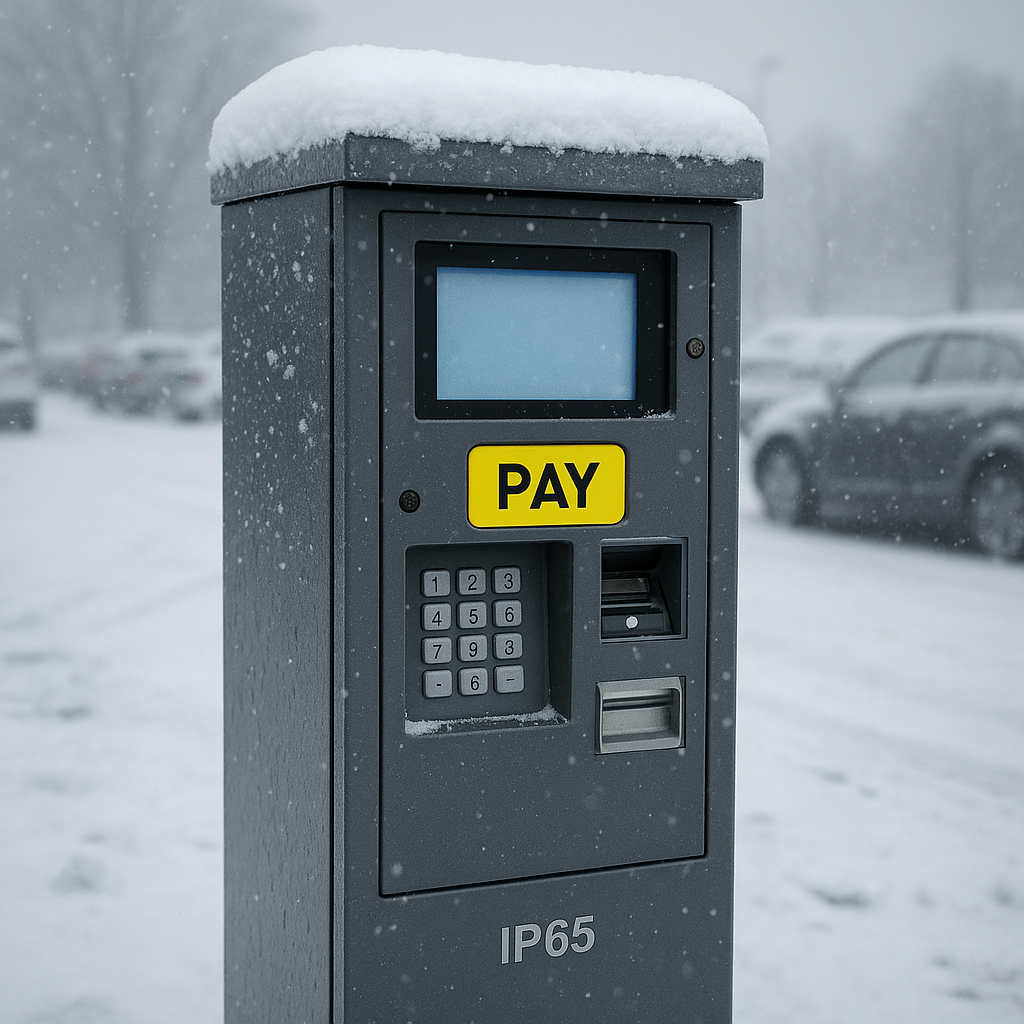
Anti-glare coating is a must-have for any classroom with natural light. Matt coating reduces the reflectance coefficient from 4–8% (standard glass) to 1–2%. The difference is visible to the naked eye on a sunny day, particularly when the sun strikes the screen at an angle. Elpix Z3 panels include anti-glare tempered glass as a standard feature — not an upgrade option. When evaluating any competing panel, check this parameter specifically.
The panel price shown in a catalog is the starting point, not the final number. The real cost of deployment involves several components, and these need to be factored into the budget for a school or organization. The “buy cheaper and save” approach often results in additional costs over the following two to three years.
What is typically included in the base price:
What may be added separately:
| Price Tier | Diagonal | Typical Buyer | What You Get |
|---|---|---|---|
| Compact segment | 32–55″ | Small classroom, office, teacher’s room | Android, 4K or Full HD, up to 10 touch points |
| Mid-range | 65–75″ | Classroom up to 25 students | 4K, 20 touch points, built-in camera, Android 11+ |
| Optimal for schools | 86″ | Standard classroom 30+ students | 4K, 20 points, 2×20 W audio, OPS slot, 3-year warranty |
| Premium / large venues | 98″+ | Auditoriums, large conference rooms | All features + higher brightness, PTZ camera option |
When purchasing for a school or corporate client, calculate the total cost of ownership (TCO) over five years. An LED panel used six hours per day has a display lifespan measured in decades. A projector lamp needs replacement multiple times over that same period, plus maintenance, plus consumables. Over a five-year horizon, the total cost of ownership often favors the panel even when the initial purchase price is higher.
“We don’t hide the fact that a panel costs more than a projector upfront. But when a school calculates what it spends on lamps, markers, and projector servicing over three years — the picture changes.” — Elpix
Public procurement in Ukraine: Elpix panels participate in Prozorro tenders. For a school, this means the possibility of purchasing equipment within MES budget financing or local educational programs. For organizations — a commercial invoice, warranty certificate, and accounting documents are included in the standard delivery package.
The most frequent questions from schools and organizations choosing an interactive whiteboard for a classroom or corporate training space.
What diagonal do I need for a class of 30+ students?
For a standard room of 50–55 m² with rows reaching 6–7 m from the board, 86″ is optimal. If the room is larger or the desk layout is non-standard, apply the rule: maximum distance to the back row divided by four equals the minimum screen height. An 86″ panel has a matrix height of approximately 1.07 m, covering viewing distances up to 4.3 m.
Does the panel need an external computer to work?
No. Built-in Android 11 or 13 runs a browser, Google Workspace, educational platforms, Zoom, and Google Meet without any external PC. If Windows is needed, connect a laptop via HDMI/USB-C or insert an OPS module into the built-in slot.
What is multitouch and how many points are needed?
Multitouch means simultaneous recognition of multiple touch inputs. Ten points is the minimum; twenty is the education standard. With twenty points, multiple students can draw or interact with the screen simultaneously without input conflicts.
What warranty comes with an Elpix interactive panel?
Three years on all models in the series. Warranty service is provided in Ukraine — no shipping abroad. Response time for a warranty case: up to five business days nationwide.
Is the panel suitable for online lessons and hybrid learning?
Yes, and this is one of its key advantages. Built-in camera and noise-canceling microphone plus screen sharing in Zoom/Meet/Teams equals a complete online lesson without additional equipment. The hybrid format — part of the class in the room, part at home — is precisely the scenario for which modern panels are optimized.
What is the difference between the Z3 65″ and Z5 32″?
The Z3 65″ is for classrooms up to 25 students: 4K IPS, 20 touch points, RK3588 processor, 2×20 W audio. The Z5 32″ is compact — for small groups, individual tutoring, or as a secondary screen. Both models include built-in Android and a wall bracket in the box.
A well-specified panel without proper software is just a large screen. The software layer determines how comfortable daily classroom use actually is — and what opportunities a teacher can realistically access without spending an hour on configuration.
What comes with Elpix Z3 panels as standard software:
Compatibility with external devices: any laptop or PC connects via HDMI or USB-C, and the panel immediately starts functioning as a large touch monitor. This is useful when a teacher already has a familiar working environment on a laptop and doesn’t need to migrate everything to Android.
For corporate use, an OPS Windows module opens access to the full Windows application stack: specialized industry software, accounting systems, technical design tools. The module slots in internally and requires no external cables — the panel remains clean and compact.
One thing worth verifying in advance: compatibility with specific educational platforms used by your school or district. Most platforms work through Chrome on Android. But if a school uses a native Windows application, this needs to be factored into the OPS module order. Updates to Android arrive over-the-air (OTA) — meaning software stays current without a technician visit. For a school with multiple panels, this is meaningful savings on maintenance.
When Ukrainian schools or businesses evaluate interactive panels, brand comparison is inevitable. Here is an honest breakdown of what actually differentiates panels in this market category.
The first thing to understand: by 2024, the hardware specifications of panels across price tiers have largely converged. 4K display, 400 nit brightness, 20-point multitouch, Android 11, OPS slot, 50,000-hour LED backlight — these are category standards, not unique brand advantages. The meaningful differences are in build quality, touch layer consistency, software depth, and post-sale service. That is where the comparison should focus.
For Ukrainian schools specifically, domestic supply chains matter. Elpix is a Ukrainian interactive panel manufacturer with local assembly, local-language software and support, and service infrastructure inside Ukraine. Practical implications:
When comparing any two panels, look beyond the spec table. Ask the supplier: what is the warranty claim response time? Is there a service center within a reasonable distance? Are OTA updates guaranteed for how many years? Is the touch layer a replaceable component? These questions reveal the real cost of ownership, not the sticker price.
For a school managing multiple classrooms, the total cost of deployment — panel plus mounting plus installation plus training plus first-year maintenance — is a more accurate budget figure than the unit price. Elpix bundles installation and training into the delivery package, which reduces the deployment overhead per classroom.
“The first time we saw the whiteboard annotation tool in action during a math lesson — using it to layer geometry constructions over a textbook scan — we understood why the panel matters. It is not about technology; it is about what the teacher can now do in ten minutes that used to take forty.” — School director, Kyiv region, 2023
This is the configuration question that comes up in nearly every school or corporate procurement conversation. Let’s settle it with concrete scenarios rather than abstract feature lists.
Choose built-in Android if your school or organization:
Add an OPS Windows module if your organization:
The OPS module approach has a practical advantage over a laptop: there are no external cables trailing to a separate computer, no HDMI accidentally disconnecting during a lesson, and no confusion about which input source is active. The module sits inside the panel chassis and switches between Android and Windows with a button press. Both operating systems run simultaneously — switching takes under five seconds.
For most Ukrainian NUS (New Ukrainian School) classrooms, Android alone covers 95% of daily teaching scenarios. The remaining 5% — specialty subject software — is worth an OPS module discussion with the teacher who would use it, not a blanket policy decision for the whole school.
💡 Looking for an interactive whiteboard for your classroom? Elpix supplies touch panels for NUS schools and businesses — with warranty and installation across Ukraine. All interactive panels.

View product
View product
Browse catalog